Our free sitemap generator not only allows you to build a XML sitemap for Google, Bing and other search engines, but also includes tools that help discover problems that may be preventing your site from ranking well on search results. Best of all, it’s completely free, no limits and nothing to download!
 ** IMPORTANT ** The SITEMAP GENERATOR respects sessions! If you are logged into your site and have delete privileges, the sitemap generator will follow all links, including ‘delete links’, so play it safe and make sure you are NOT logged into your website!
Current Version of the XML Sitemap Generator is v2.14. The main focus of this update was on the indexing speed of very large websites and is now 250% faster than the previous version. IF YOU HAVE PROBLEMS running my tool, see my section on using Firefox ESR.
How to Make a Sitemap
For those that want to skip the instructions: XML Sitemap.
At one time, each search engine had their own idea of how a sitemap should be formatted, fortunately a SITEMAPS standard was developed for XML sitemaps that Google, Bing, Yahoo and other SE’s now adhere to.
There is still the traditional html sitemap, and we have taken that into consideration when building the sitemap generator; our webmaster tool provides you with the option to generate a XML sitemap, HTML sitemap, raw list of urls, session report and a html report – how you save (export) the file is up to you.
Before the XML Sitemap, website owners used a HTML sitemap to get their content recognized by search engines, and it still works extremly well! The nice thing about this type of sitemap is that it can help visitors navigate your site while allowing search engines to find your content.
GENERATE A SITEMAP FAST
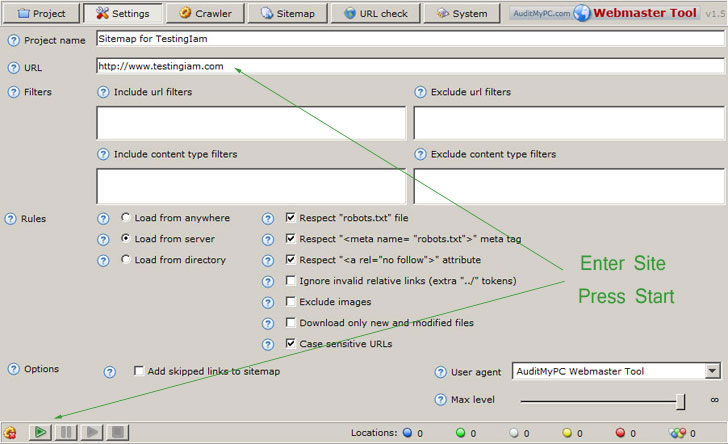 It’s simple, just enter the website you would like to generate a site map for (found under the ‘settings’ tab) and click the little green arrow to start crawling.
The sitemap generator will spider your site using the default settings and give you the option to create a xml sitemap (or html sitemap depending on your need).
Any errors, such as missing pages, duplicate titles or overly large files that may be slowing down your site will be listed for your review.
SITEMAP GENERATOR DETAILS (the manual)
This site map generator (now part of the webmaster tool) is loaded with tons of features and consists of six tabs:
‘Project’ tab – allows you to save and load your sitemap project. This can be very handy when making a XML Sitemap for a large website with a thousands of pages. If you decide to use filters after you have crawled your site, you need to select “New Project” and run it again to obtain your new sitemap. Note: A sitemap project file is NOT the same as XML Sitemap (which is found under the Sitemap Tab).
‘Settings’ tab – allows you to specify the way your site will be spidered and what will be included in your Google or XML sitemaps.
- Project Name – This will be the name of your project
- URL – The full address (including the http://) of the website you would like to create a Google or XML sitemap from
- Filters (case sensitive) – you can tell our tool to include or exclude certain files or content when you generate a sitemap. Regular Expressions are supported when you prefix it with “complex:”.
- Include / Exclude Filter – This is a list of path patterns, asterisk (*) wildcard supported, case sensitive. When the sitemap generator is about to crawl a website, it is validated against all inclusion patterns. If none match, then the location will not be processed and will not be placed into sitemap. If you leave this area empty, then it is assumed that you want to include everything so that all locations will are process being excluded from processing.
- Include / Exclude Content Type Filter – same rules apply as with include/exclude filters and target the type of content.
- Here are some examples of exclude filters I used for my WordPress Sitemap:
*/trackback/*
*/feed/*
*/feed
*/comments/*
*/tag/*
*/author/*
*/wp-content/*
*/wp-json/*
*xmlrpc*
*wp-admin*
*.css
*.xml
*.zip
*.swf
*.jpg
*.jpeg
*.png
*.pdf
complex:.\?.Note: The last complex statement would exclude all pages that start with /shopping/food/ and contain only letters.
- Informal Links Regex – Allows you to search for links that are not standard, such as hidden comment spam that may link out to other sites.
Ex: (?i)[a-zA-Z0-9\-\.]+\.(com|org|net|mil|edu) - Rules – Allows you to set rules when creating your XML, HTML or Google Sitemap.
- Load From – Provides you with the option to process files from the entire server and below the initial directory which is specified by URL parameter. For example, if the URL parameter is a server address, this option does not effect the behavior of the google sitemap generator; However, if you enter a directory, say for example http://www.popupcheck.com/news/index.html, only files below /news directory will be processed including any sub directories.
- Respect Robots.txt file – you can tell the sitemap generator to honor this file or to ignore it.
- Respect Meta Robots.txt – you can do as this meta tag instructs or ignore it.
- Respect No Follow – If the sitemap builder finds a link with a no-follow tag, it will ignore or follow it depending on your selection.
- Ignore invalid links – If you find links that try to back up past your root directory, then you can choose to not include this in your sitemaps.
- Exclude images – Check this. Images will not be included anyway (not used)
- Download only new files – this works when you have a sitemap project that you have saved out
- Case Sensitive URLs – Treat URL’s that have different case as unique
- Skip unmatched non=canonical links – If a page has a canonical url that differs from itself, it will not be included in the sitemap
- Options – Some cool stuff here and can be very important!
- Add skipped links to sitemap – when the webmaster tool crawls your site, it may find bad links. This option allows you to include those in the sitemap anyway.
- User agent – When you spider a site, you leave in the log files the name ‘AuditMyPC Webmaster Tool’ as the browser type. Some web hosting companies may block a browser if it is making too many requests. You can change the referrer (user agent) to something else by selecting from the drop down or typing it in!
- Max Level – This is not the file depth in a directory structure, but 1
+ number of links between this document and root document (project
settings url). For example, if the settings url is set to testingiam.com, then the document level is 1, this links to testingiam.com/level1/ so this page
level=2 and that page links to testingiam.com/level1/level2/level3/level4/level5/level6/level7/ which would = level 3.
‘Crawler’ tab – Set the speed in which the sitemap is generated.
- Request Delay – Our XML sitemap generator works extremely fast, the downside of this is that some internet service providers may find this places a heavy load on the server. If this is the case, then you can place delays between requests.
- Connect Timeout – When building XML sitemaps which encounters pages that don’t load or take too long, a timeout can be set.
- Read Timeout – If the spider finds a page that goes on forever, you can specify a timeout for reading that page.
- Transfer Rate – Each thread can transfer web pages at a very fast rate. You can tone that down a bit if necessary, but the default works fine.
- Thread Count – The number of simultaneous crawling threads to run when creating the Google site map. This may significantly decrease overall crawling time if large number of threads are specified but will increase bandwidth usage – so use with caution or just run with the default.
- Autosave Interval – Tells the sitemap generator to save the project out every X number of minutes – default is don’t save. Change this if you have a vary large site!
- Once you click on the button, crawling will begin and you’ll be presented with status indicators for thread status, uri, values and more. All parameters are self explanatory and ‘Finished’ will appear once crawling is completed. You may stop the sitemap generation at any time by pressing the ‘cancel’ button.
‘Sitemap’ Tab – Contains a ton of information about each page and updates in real time.
all the locations / files that have been crawled. Under the ‘Sitemap’ tab, you have sub-tabs, such as ‘save sitemap’, ‘retry’, ‘row filter’, ‘column filter’ and ‘trees’.
- Export – this is where you decide what type of sitemap you would like to build.
You can choose ‘Sitemap XML (For creating XML sitemaps used by Google, Bing, Yahoo and others) ‘, ‘URL Raw List’, ‘Delimited File’, ‘Session File’, ‘HTML (Sitemap Only – old style sitemap, not a XML sitemap) and a ‘HTML Report’. - Retry Failed – This option will retry to read pages from the sitemap that had problems on the last run
- Row Filter – When building a sitemap (crawling a site), you can filter out rows based on just about anything you can think of (see the question mark next to each item for details). For example, Google released results of what they found when indexing the top sites; one of those metrics is the average size of a web page, which was 312KB, so you could enter 319528 as the length filter (needs to be in Bytes) and find all the pages that Google considers large – and fix them.
- Column Filter – Same as the Row filter but for Columns.
- Find – This allows you to search your xml sitemap for text.
- You have the option to edit ‘Modified’, ‘Change frequency’ and ‘Priority’ cells for each row (or all rows – well get to that in a moment).
- Listing of URLs (pages) – You’ll see a listing of all your web pages that include items like Title, Status, Errors and more.
For the Google sitemap, you can set the ‘Change Frequency’ and ‘Change Priority’ for on or multiple urls by highlighting the desired url(s) and right clicking, then choosing your option. You can also delete page from your Google or XML Sitemap by simply highlighting the desired urls and pressing your computer’s delete key.- Change frequency – Tells Google Sitemaps the frequency that content of a particular URL will change. Your options are “always”, “hourly”, “daily”, “weekly”, “monthly”, “yearly” or “never”. The value “always” should be used to describe documents that change each time they are accessed. The value “never” should be used to describe archived URLs.
- Priority – The priority of a particular URL relative to other pages on your site. You may select between 0.0 and 1.0, where 0.0 identifies the lowest priority page(s) on your website and 1.0 identifies the highest priority page(s) on your website.
‘URL Check’ Tab – This is an important tool to finding out why a page does not load or why Bing, Google, Yahoo and other SE’s are not including it in their index. It’s a great way to Check Server Headers and allows you to modify the request properties!
- URL – Enter the full website address or url that you want more information about
- Request Properties – Enter values to send to the server such as the user agent or referrer. To enter a user agent and referrer when validating a page, simply enter:User-Agent=X
Referer=XWhere X equals the value you want. Here is an example:
Referer: https://www.auditmypc.com
User-Agent: Mozilla/5.0 (compatible; ScoutJet; +http ://www.scoutjet. com/)If you ran the URL check on your site with these settings, your log files would show that the request was made by the blekko bot (scoutjet) and the visitor was referred by the site auditmypc.com
Note: You can use this section of the tool to test security, website behavior and more…
- Save Content – You can also send the server headers and other information to a file or content view. When you click the ‘to content view’ option, then click start and then click the ‘Content’ Tab (next to ‘Request’), you’ll see the content / source of the web page.If you then click ‘Parse document info’, you’ll see a document tree and document info. The document tree is more advanced and can help webmasters discover missing head tags, body tags and more.
The Document Info will show you the title, number of links, meta tags and a listing of all the links found on that page.
‘System Information’ Tab – Shows you how much memory Sitemap Generator (Java) has available for use. If you are checking links or building a XML Sitemap for a large site, you’ll want to allocate more memory. Allocating more memory is as simple as issuing a command – see this 60 second video on how to increase Java memory for more information
To increase the memory available to Java, simply add the parameter –XmxNNNm, where NNN is ½ of your total conventional memory in megabytes. On Windows, this is done through Control Panel -> Java -> Java tab -> Java Applet Runtime Settings -> View.
For example, say that you are running the link checker on website containing 500,000 pages, simply type “-Xmx512m” in “Java Runtime Parameters” field (provided you have at least a total memory of 1GB – on average, you can go up to half of your computer memory).
Create the Sitemap – Export the Sitemap XML file.
Once the sitemap generator is finished crawling your website you need to export the sitemap file for search engines. Simply select the SITEMAP tab, then EXPORT, then SITEMAP XML. If you go with the defaults, it will save a sitemap called “New sitemap_sitemap.xml” into your default folder (usually your “My Documents” folder. Once you have the sitemap file, simply upload it (ftp, transfer) it to your website’s main folder and let the search engines know the location.
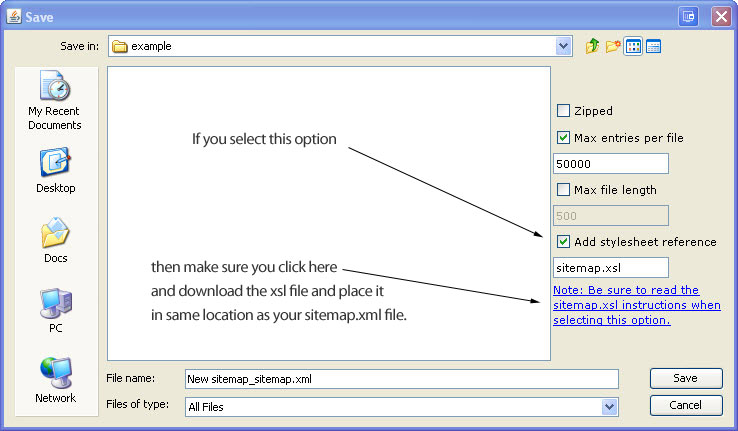
Note: if you add a stylesheet reference (doesn’t matter to the bots, but looks great and easy to read), then you’ll need the following sitemap.xsl (it’s zipped up) file placed in the same location as you place your sitemap.xml file)
Google Sitemap Generator – How to Submit Sitemap to Google
- When the sitemap generator has completed the crawling process, select Export under the Sitemaps Tab and choose Sitemap XML
- Enter the filename you would like to save the sitemap as and click save (the default is sitemaps.xml which is fine)
- upload the new sitemap to your website. It seems every hosting company has a different method of doing this, but they are all basically the same – Think of your sitemap.xml file as any htm (html, php or asp) file that you’re going to place on your website. There is probably some type of import option that your hosting company provides you – use it to move (FTP, Publish, etc) the sitemap.xml file from your computer onto your website. Place it in the same directory that holds the main page for your website.
- Log into your Google Sitemaps account by visiting Google Sitemaps Account.
- Click on the “Add a Sitemap” link.
- Enter the URL for your Sitemap in the field, then click the [Submit URL] button.
- Example: The URL for your Sitemap will be your website address, followed by the filename that you uploaded. For example, if I uploaded my ‘sitemap.xml’ file to my auditmypc.com site, the URL I would give to Google Sitemaps would be https://www.auditmypc.com/sitemap.xml
This will submit your Sitemap to the Google service. It may take Google a few hours to generate reports about your site, so be patient while they work their mojo.
Bing Sitemap Generator – How to Submit Sitemap to Bing
- Create the sitemap as normal using our Sitemap Generator
- Click the ‘Save Sitemap’ tab located under the ‘Sitemap’ tab
- Select ‘Sitemap XML’ to save it out as the name you would like and then upload the sitemap to your website
- Submit your XML File to Bing Webmaster Home
Yahoo Sitemap Generator – How to Submit Sitemap to Yahoo
- Create the sitemap as normal using our Sitemap Generator
- Click the ‘Save Sitemap’ tab located under the ‘Sitemap’ tab
- Select ‘Sitemap XML’ to save it out as the name you would like and then upload the sitemap to your website
- Submit your XML File to Yahoo Site Explorer – UPDATE: No Longer in service
- You can provide Yahoo Sitemaps with a feed in the many formats other than XML (stick with XML).
- RSS 0.9, RSS 1.0 or RSS 2.0, for example, CNN Top Stories
- Sitemaps, as documented on sitemaps.org
- Atom 0.3, Atom 1.0, for example, Yahoo! Search Blog
- A text file containing a list of URLs, each URL at the start of a new line. The filename of the URL list file must be urllist.txt; for a compressed file the name must be urllist.txt.gz.
XML Sitemap in Robots.txt File
Don’t want to have an account with each search engine to submit your sitemaps to? There is a solution! You can put the location of your sitemap inside a ROBOTS.TXT file. Every search engine will read your robots.txt file before crawling your site and if it see this line:
Sitemap: [website address]/sitemap_location.xml
then it will find your sitemap without your having to do anything else.
Here is an example of a robots.txt file, which you can use if you don’t already have one:
User-agent: *
Disallow:
Sitemap: https://www.auditmypc.com/mynewsitemap.xml
Simply replace my location with your information.
Benefits of this Online Sitemap Generator over other Sitemap Tools
One of the major advantages of using this tool is that owners of websites find errors they never knew existed on their sites! WordPress, Joomla, Drupal, phpBB and other content management systems all have sitemap programs you can add onto the system, but these sitemap generators read from the database, NOT from the outside; although faster, they miss errors that can only be seen from an outside crawl – these errors most often prevent sites from being indexed properly by Google, Bing, Yahoo and others! Once fixed, website owners usually notice a major increase in search engine traffic!
Let me give you a real life example – It starts off with trying to make a sitemap for Google and discovering that the sitemap generator simply stops at the main page and doesn’t find other pages within the site.
It is this very problem that people often write to me about. Almost always, after reviewing their site, I discover web pages that are missing beginning or ending tags, such as html, head and body tags.
I also discover that a large number of site owners are accidentally blocking robots from visiting their page. In the sitemap builder, you’ll notice that there is an option to honor robots.txt files and no follow tags.
If you’re having a problem with the sitemap builder and your page is formatted correctly, try deselecting the robots and no follow options. If this works, then the problem is with one of these items.
Every attempt has been made to make our webmaster tool behave as the search engine robots do when spidering a site. There are standards that each search engine subscribes to when reading websites and we subscribe to that same data. The point is, if we catch the errors, it’s a very real possibility that the search engines will also.
A perfect example would be a hosting company blocking our spider because it’s going to fast – chances are, the hosting provider is also doing this to the search engine robots and could be preventing them from seeing your entire site (which could lead to poor ratings). – See changing user agent above for solutions to this problem.
Common Sitemap Builder Problems
Problem: I click the image / link to run the sitemap generator but nothing happens. All I see is a page with a few links including a link to donate a cup of chai for offering such a cool tool, which I’d be happy to do if it worked :)
Chances are you’re not running Java or have an old version. Java is free and you can check your version at java.com/en/download/installed.jsp – once java is running, you’ll see the program and fall in love :)
Problem: You have created a sitemap but it picked up hidden files which you don’t want the search engines to see, so you deleted them from the sitemap.xml file, but the search engines still see the files.
Solution: If the sitemap builder can find these pages that you think are hidden, then so can the search engines. Sure, you can exclude them from the sitemap.xml, but the problem is that you are linking to these hidden files from one of your webpages. Click on the plus next to that URL under the Sitemap Tab of our generator and you’ll find all the url linking to that hidden file.
If want to exclude the files rather than hide them, you can exclude them in your robots.txt file. My sitemap builder will respect the robots.txt file (obey it), just like the search engines and prevent them from being included in the site map. Note: Not all search engines respect your robots.txt file and may look at the url regardless.
Problem: You enter your website address and nothing happens.
Solution: Is that really your website’s main page? For example, you might have entered http://[yoursite.com] as the address, but if you type this in the browser and you end up at http://www.mysite.com/index.shtm, then you have a landing page that is different than your website address.
In this case, you would enter http://[yoursite.com]/index.shtm as the site address.
Problem: I want to exclude images and css files.
Solution: Check the ‘Exclude Images’ and enter *.css as an exclude filter or enter the following in the exclude area:
*.jpg
*.bmp
*.gif
*.tiff
*.css
Problem: You want to capture only urls that in the men sub-directory containing only numbers, letters and a forward slash:
http://[yoursite.com]/shopping/men/casual/21/2
http://[yoursite.com]/shopping/men/sports/soccer
but not:
http://[yoursite.com]/shopping/men/sports-2 (has a dash)
Solution: Use a regex expression by prefixing it with ‘complex:’, for example:
complex:http://[yoursite.com]/shopping/men/[A-Za-z0-9/]*$About regex:
- Entire url (including protocol and host) matched against pattern, for example:
complex:http://[yoursite.com]/shopping/men/[A-Za-z0-9/]*$- Pages filtered out are not processed, i.e. lets say we have root page that references page A, which, in turn, references page B, and page A doesn’t match filter rules, then you’ll will never reach page B.
- ** Quick Reference **
[A-Za-z0-9] = Alphanumeric characters
[A-Za-z0-9_] = Alphanumeric characters plus “_”
[^A-Za-z0-9_] = Non-word characters
[A-Za-z] = Alphabetic characters
[ \t] = Space and tab
[\x00-\x1F\x7F] = Control characters
[0-9] = Digits
[^0-9] = Non-digits
[\x21-\x7E] = Visible characters
[a-z] = Lowercase letters
[\x20-\x7E] = Visible characters and spaces
[-!”#$%&'()*+,./:;<=>?@[\\\]^_`{|}~] = Punctuation characters
[ \t\r\n\v\f] = Whitespace characters
[^ \t\r\n\v\f] = Non-whitespace characters
[A-Z] = Uppercase letters
[A-Fa-f0-9] = Hexadecimal digits- + Match one or more of the previous items (previous character) so, the expression Rob+in would return Robin, Robbin, and Robbbbin. Alternatively, you can build a list of Previous Items by using square brackets. Like this: [abc]+ This will return a, ab, cab, c, b, bbbb, etc.
- The carat (^) matches the beginning of the document. Applying ^a to abc matches a but ^b would not match because it doesn’t start with b
- The dollar sign ($) matches the end of the document.
- A backslash (\) followed by any special character matches the literal character itself, that is, the backslash escapes the special character.
- The # and – characters must be escaped in expressions (## –) just as though they were special characters.
- A period (.) matches any character, including a new line.
- A asterisk (*) matches 0 or more of the preceding character (note that it will not be able to match an ending forward slash but period will).
Problem: You have a WordPress site and want to exclude shortlinks (like testingiam.com/?p=31) from your xml sitemap.
Solution: Use a regex expression on one of the lines in the exclude url section.
complex:.\?.
The command above will exclude any url with a ? in it.
Problem: Site Map Generation slows down after 20,000 pages
Solution: Some webmasters have noticed that during a crawl of a very large site, the sitemap generator may slow down after spidering about 14,000 urls. This can happen if the site is heavily nested or has a complex linking structure.
People who experience this lag usually have rapid applet memory consumption and need to increase the amount. The site map builder by default is limited to 50-100m which can quickly be consumed on a complex web site.
To solve this problem, you can increase the amount of memory used by the site map builder. Simply navigate to the control panel and click on the Java Icon. Then, inside the Java Control Panel, click on the Java Tab, Java Applet Runtime Settings, View and then in the Java Runtime Parameters cell, enter ‘-Xmx256m’.
You can take it a step further when building a sitemap (if you’re still having problems) and enter ‘-Xmx512m’.
Problem: You enter your website address and the site map builder stops immediately.
Solution: This is caused because your main page is redirected to another page (landing page). For example, you may have yoursite.com being redirected to yoursite.com/sales/products/sindex.htm
If this happens to you, simply enter your website address into your browser and notice where you are redirected to; take that redirected website address and enter it into the sitemap generator.
In the example I used above, you would enter:
yoursite.com/sales/products/sindex.htm
into the sitemap generator.
Problem: The sitemap generator find JPG files even though you’ve ticked the “exclude images” option.
Solution: Add the extension to the exclude filter as well, such as *.JPG
Problem: The sitemap generator misses a few or many files.
Solution: If you are having problems building a sitemap, it may be due to your Robots.txt file or your Metatag. Try unchecking the Follow robots.txt rules and/ or meta name robots rules.
Problem: I can’t see the webmaster tool graphic button, so I can’t start the test.
Solution: If that’s the case, then your browser settings may be preventing sitemap generation.
In IE, look under Tools, Internet Options, Security, Custom Level, Scripting of Java applets and choose prompt. Active scripting should be enabled as well.
In Firefox, look under tools, options, web features and make sure the Enable Java and JavaScript is selected.
If after trying these you still have a problem, please let me know and I will do my best to get you up and running.
Problem: Google Sitemap Invalid Date Error Message
Solution: If you get an ‘invalid date’ when you submit your sitemap, check to make sure that the time in not in the future. A common mistake is to not to account for daylight savings when creating the sitemap, so make sure you use the time zone for your server and not the local timezone.
Note: This sitemap generator runs on your PC and not the server.
Problem: Only one url (page / website address) shows in the sitemap generator and I know I have hundreds of pages?
Solution: Open your browser and visit your website’s main page. When you see the main page in the browser, copy the website address and paste that address into the sitemap generator URL field under the settings tab. Don’t type it in, copy and past the entire address just as it appears and you’ll be all set.
When my tool builds a sitemap, it needs a valid starting url. Chances are, you have given it a url that is a redirect. For example, if I gave it http://AuditMyPC.com, it would stop, it needs https://www.auditmypc.com (auditmypc.com redirects to www.auditmypc.com).
How to Run my Sitemap Generator/Webmaster Tool
Firefox, after version 5.2, has disabled support for Java Apps in the standard version of their browser. However, the version most government agencies, universities and other large organizations use, is Firefox ESR (Extended Support Release). There is a 32 bit and 64 bit version, you’ll want to use the 32 bit version. It works great and will allow you to run my sitemap generator – trust me, it’s a small price to pay to discover the problems my sitemap generator finds with your website.
Here are the steps…
1) Search Google for Firefox ESR

2) Click the download button

3) Select the version for your language, but do not choose the 64 bit version.
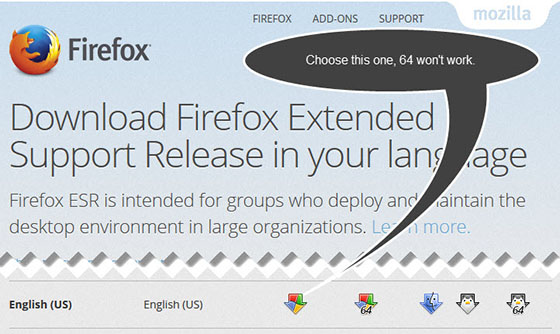
4) Revisit my website’s sitemap generator page and click the accept button when you get a security warning.
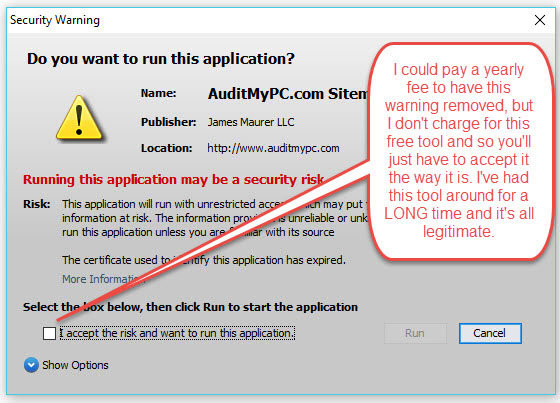
I could have paid for a certificate so this message would not appear as I have in the past, but I do not charge visitors for my sitemap generator/webmaster tool, so I’m no longer paying the fee. You either trust me or you don’t, it is entirely up to you. I have had this website for almost two decades now and can read more on my about page.
Like my Sitemap Generator?
 Like our sitemap builder? Please let others know by displaying this icon. Simply copy and paste the code snippet below onto your webpage:
<a href=”https://www.auditmypc.com/free-sitemap-generator.asp” target=”_blank”><img alt=”Sitemap Generator” src=”https://www.auditmypc.com/images/sitemap-generator-80×15.gif” width=”80″ height=”15″ border=”0″ /></a>
Or, perhaps this XML Generator icon
 XML Sitemaps – 1kb at 80 x 15 in .gif format.
<a href=”https://www.auditmypc.com/free-sitemap-generator.asp” target=”_blank”><img alt=”XML Sitemap Generator” src=”https://www.auditmypc.com/myicons/xml-sitemap-generator.gif” width=”80″ height=”15″ border=”0″ /></a>
Thank you for your help and offer Standa! Your kudos is gift enough, thank you!
Hi Mark,
The latest version of IE does not run Java. You will need to run Firefox ESR as mentioned at the top of this page – see my section on how to run my website tool.
Enjoy!
Sitemap generator won’t work on IE with the latest Java installed. It says that the code is too old, or something like that.
Hello! Problem solved! Java really changed the security settings in the latest update and your sitemap application could not be run (it was blocked by Java or browser settings etc.) and I red few things and then I realized it is easy: Java has also its settings and there is exception list which should not be blocked by new high security settings – I placed your web into exception list and it works (of course Java was warning me few times :-)). Great – I found that only your application works also with pictures and many, many links. Unbelievable. You are the best, if you want me to send 50 USD at your bank account as fee for using – I am ready to send it :-). Best regars, Stanislav Smiga
Hello, your website is world wide known and your sitemap tool is very good, but latest JAVA started some kind of security check and I cannot start it any any machine, at any browser. Do you know more about what is going on? What do they expect and if you are able to meet those requirements? You do very good job, your tool is the best I know – and I am not saying that only because it is free to use. Best reagards, Stanislav
Further to my previous message… I exported it to CSV and noticed that these files were excluded because of “Load from server rule”
Hi. First of all thanks for this sitemap software. It looks awesome.
I have a problem…. I have several files which somehow where not included in the sitemap – they are not being excluded by robots.txt. In fact they are already indexed by Google. So I ticked the ‘Include skipped files’ option and they can be seen in the Sitemap tab.
However when I export the sitemap to xml the skipped files are not included. How can these be included?
Thanks
Hi Matthias,
Can you tell me what system and setup you have?
Thanks
Hi Kevin,
I do this for free, have a full time job and family so I try to respond as soon as possible. It works great for me, and others, and I’ve tested on multiple machines as well.
What version of Java are you using?
Hi Ted,
Simply start a new project and it will delete the old session.
Hi Chris,
Is the website the last part of your email? If not, let me know what it is (I won’t publish it) and I’ll take a look. If I can do it for free, I will.
Best.
Can I pay you a fee for you to create my sitemap. I have approx 240,000 product pages and want it done right and get all my pages to be crawled and possibly indexed. Thanks!
I just wanted to say this tool is awesome.
Thanks for providing such a great tool for free.
Hi,
It appears that after crawling the home page it crawls the urls in order in which they appear on the home page. I see that it retains the session between crawls. Why does it do that? My understanding is that google approaches each page fresh.
I assume the idea is to mimic user behavior for how they might peruse a site, but since you go in order of appearance of links in my case it results in something that never can happen: a user cant go from an Austin/TX url to a Boston/MA url . The site generator ends up being redirected to my home page it tries to do that, and the end result is the links for half of my 50 cities are not ever discovered.
A solution for ensuring that it picks up all of the links is to destroy the session at the end of each page. Is that ok to do or does it in some way mess up something else the generator is trying to do?
thanks,
Ted
yes used sitemap generator for years but since last week it no longer works and have done the java check which confirms we have the latest installed java8 update20, so all you get is message waiting for www.auditmypc.com and nothing happens symbols continue to just go round and not connect, so very frustrating!!
any ideas what wrong ??
Hi,
thanks for this great tool !
When opening a saved project it says “Invalid reference count: 0”. After pressing OK, all settings are gone. Storing it again, then saved project xml is only have size.
Two other questions:
When I start then crawling I need to check “Download only new and modified files” right ?
Changes in Settings will be taken into account after saving project or already after stop + start crawling ?
Thanks in advance
Matthias
Hi Pete,
Thank you for making my day :)
I did a quick look at the site and ran the xml generator with a useragent of Googlebot/2.1 (+http://www.google.com/bot.html). What I found right off was an error message telling me the page was forbidden because of flooding.
The only time this ever happens is when you are hosting with a company that controls the rate at which you are being spidered. This is NOT something you want as the Googlebot may not adjust their rate to fit your needs and will result in your pages not being indexed!
If I slow the crawl way down, the forbidden errors go away.
Solution: Tell you web hosting company to stop controlling the rate at which your site is spidered.
Do this, find your competition’s website on the web, then spider their site for about 60 seconds and stop. I’ll bet you’ll see there are no such errors and they are not rate controlled.
Good luck!
Jim
Some Google Bot user agent strings…
Mozilla/5.0 (compatible; Googlebot/2.1; +http://www.google.com/bot.html)
Googlebot/2.1 (+http://www.googlebot.com/bot.html)
Googlebot/2.1 (+http://www.google.com/bot.html)
Hi Jim first let me thank you for providing a excellent resource, I have a question when I crawl my site it finds 33 failed (403) out of a total of 43 pages.
If I then keep clicking on retry failed it eventually succeeds on those pages “is this normal” ?
ps: I hope you enjoy the chai
Dave, you are the man! Thank you so much for dinner, I greatly appreciate it!
Besides finally getting my sitemap done, your export to xyz_sitemap.html (showing web site structure via indents) is the answer to my prayers. Just bought Jim a Red Lobster gift card!
Hi Eva,
Look at the jpg files, if they are .JPG or .Jpg, then add those exclusions as well. They are case sensitive.
*.JPG
*.jpg
*.Jpg
Sorry, I need to change this on the next update.
Jim
Hi Jim,
*.jpg in the ‘exclude url filters’ area doesn’t work
Did I something wrong?
Tank you!
Eva
Hey Chris, when someone claims this, it is the project they are submitting, not the sitemap. You need export a xml sitemap from my program – don’t select save project as…
What is the address of your sitemap and I’ll take a look to confirm this.
I have tried several times to submit the generated xml sitemap as well as an html sitemap to google and all I get from google is “Your Sitemap does not appear to be in a supported format. Please ensure it meets our Sitemap guidelines and resubmit.” Google gives this same error whether I submit as xml or html. I have no errors on the build and have checked the guidelines which are not very helpful as it would be assumed that the builder itself would make compliant files or give you help on what would be wrong and to make compliant. Any help is appreciated. Thank you.
You made my day Eva, thank you!
Jim, thank you very much!
( Donated a Chai tea :-) )
Eva
Hi Eva,
Just enter the name of your website and also under useragent, enter what I posted above then run the xml sitemap generator. If it gives you an error, click the green start button again and you’ll be all set.
Best,
Jim
Hello Jim, you wrote:
”
Hi Eva,
There is something not right here – If I play with the useragent string, I get different results!
For example, run the sitemap generator, but in the useragent field, put this:
Mozilla/5.0 (Windows NT 6.1; WOW64; rv:15.0) Gecko/20120427 Firefox/15.0a1
Then run the generator. If your server / host is restricting traffic on useragent string, it could be hurting your site. Google uses different useragent strings to review your site, as do mobile devices. This was a cursory review but in that short time, that popped out.
And yes, looking at the sitemap, times, links and more can tell you soooo much :) It can give you that advantage you are looking for :)
Jim
”
I don’t understand anything of such things, so I asked our hostingprovider. He told me that the server configuration is the same as for our other site. For these sites your tool works perfect!
Jim, my English is bad, my computer-English even more bad and i have no idea how to solve this problem. Is it something easy? Do I need professional help?
Thanks!
Eva
Hi Eva,
There is something not right here – If I play with the useragent string, I get different results!
For example, run the sitemap generator, but in the useragent field, put this:
Mozilla/5.0 (Windows NT 6.1; WOW64; rv:15.0) Gecko/20120427 Firefox/15.0a1
Then run the generator. If your server / host is restricting traffic on useragent string, it could be hurting your site. Google uses different useragent strings to review your site, as do mobile devices. This was a cursory review but in that short time, that popped out.
And yes, looking at the sitemap, times, links and more can tell you soooo much :) It can give you that advantage you are looking for :)
Jim
Hi Jim, love your reports, especially reporting problems.
Used it with pleasure, but it doesn’t crawl our website
vakantie-oostenrijk .nl
Problem: 403 at the very first file.
I don’t know how to solve this problem.
Help please!
Thank you very much,
Eva
Hi Tom,
Thank you for the donation!
I’ve looked at your site and generated a sitemap for you :) I also noticed a number of issues that may be preventing you from ranking higher:) For example, you’ll notice that there are a large number of pages without titles or descriptions! There are also a large number of pages that have duplicate titles!
I see that most of the duplicate titles are sub pages of the main page which does have a title, so I’ve created a sitemap that includes that main page. Google will discover the sub-pages with duplicate titles, but should guess that what you have in the sitemap is the important page. It works for me :)
I’m guessing that you can’t really get into the code and modify it for unique titles, etc, so this is your best option and will work for you.
I also noticed 5 errors, one was your 20% off page. Not a big deal unless that 20% off page is being used!
I’ve emailed the sitemap to you along with the xsl stylesheet. Simply place these in the root of your directory (you’ll be replacing the sitemap.xml file already there)
Let me know when that’s complete and I’ll take another look.
BTW: Here are the “Exclude url filters”:
*.jpg
*.Jpg
*.JPG
complex:.?.
Regards,
Jim
Jim,
In addition to the other questions already asked, I tried to do a Bing account and submit the sitemap.xml to it but it said ‘not found 404’. So I read further about entering a code that ALL the robots will follow, but I am not sure where or how to put that info in my site.
and yes, it is your sitemap that is referred to in the robots.txt.
Tom
Tom, I see a sitemap in your robots.txt, is this the sitemap you created with my sitemap generator and also the sitemap you submitted to Google?
Jim, I pasted what I think is the address that you were asking for into the comment box. I see that it doesn’t show in the comments. Is that by design? Did you get the info? Tom
Hi Tom,
Great to hear it is working for you! When asking for the location of the sitemap, I was referring to the name of the sitemap file itself and the location that it is stored on your server. When you told Google the address of the sitemap, it had to include the full website address and that was what I was looking for.
There is a TON of information to be had from reviewing the competition’s using my tool :)
There is no limit on the number of pages when using my xml sitemap tool. The other companies are in it for the profit and limiting it to 500 is simply a way for them to suck you in.
The sitemap helps in a number of ways… By making search engines aware of your pages, especially deep linked ones, by discovering errors on your site, by finding flaws in your hosting company, by reviewing keywords and descriptions, by understanding the link structure and much more. To answer your question, yes, it will help make sure Google is aware of your pages. More pages can mean more traffic (depends on content).
Best,
Jim
Dear Jim,
Good news! This AM I looked at google webmaster sitemap etc., in our account and the Bar graph shows 500 submitted and 481 indexed. :-) Interestingly, when I did the sitemap ‘test’, it still indicated that 395 pages were submitted. ???
However, it looks as though we are off to a good start.
I still have a question. With 2079 lines on the site map generator spread sheet, how many of those items are ‘pages’ that CAN/SHOULD be indexed? Prior to finding your generator, I had seen several generators that limit the # of pages to 300 or 500. You refer, in your copy, to large websites and how they are to use your generator. Are the 500 pages submitted from our site the result of a limit your generator imposes? (500?) Are there more pages that did not get submitted or is it a huge coincidence that our site has exactly 500 pages out of that 2079 lines on the spreadsheet. Is there away to look at the spreadsheet data to determine how many of those lines are ‘submittable pages’ ?
In a practical vein, can we expect an improvement in traffic, searches and other related things?
We are really excited about the progress so far and thank you very much.
Tom :-)
I just went to the generator and put the url of one of my competitors in a new project and it ran just like mine did. Of course I did not ‘submit’ the spreadsheet to the sitemap creator, but I suppose that I could. I just couldn’t load it to their site since that does require password etc.
Let me know what I need to do. Thanks, Tom
I am not sure that I understand what you mean by the ‘address’ of the site map. I uploaded it to our site and then with filezilla, to google webmaster tools. Since your sitemap tool didn’t request any password, would you not be able to create a sitemap just by entering our site address in the generator and then looking at the sitemap that it creates (in the spreadsheet)?
Is there a way that I can recreate it and send it to you?
Tom
Thanks for the address tom, but I’ll need the sitemap that goes with it. So, simply let me know the address of the sitemap you submitted to google.
Dear Tom,
I can’t help without the location of your sitemap, once I see that, then I can tell you what is going on.
Dear Jim,
It appears that your sitemap generator is just what I am looking for. I ran it a few times and after I deleted the errors found, I created it and uploaded it to our site. Then through google webmaster tools to optimization/sitemaps. It showed 500 pages submitted. The stats of our sitemap.xml showed 2093 lines in the spreadsheet, 14 failed which I deleted and 2079 processed.
Here are my questions.
When I tested the submission, it said that 395 pages were submitted, not 500. What’s with that?
I do not know how many pages we should have submitted, but out of 2093 lines, I find it hard to imagine that there were exactly 500 and then reduced to 395.
I submitted it to google on June 12 and as yet there are no indexed pages. Why is that?
Immediately after I submitted it to google, I requested that google crawl the site right away.
Can you help me with any of these issues?
Thanks, Tom
Awesome, what a great video. This is just a great tool and perfectly explained.
Many Thanks!
Hi Danny, I’ve updated the instructions with a graphic here:
https://www.auditmypc.com/free-sitemap-generator.asp#sitemapxsl
If you select the .xsl option, then you need to download the xsl zip file and place it in the same location as the sitemap file.
I looked at the sitemap and it seems to be fine. I also checked the site and didn’t find any 301’2, 302’s, etc. What are some of the examples Google is showing errors on? What are the urls / addresses? With a few examples, I can check your server headers and compare to the sitemap file to find out what’s going on…
Hi Jim,
Thanks for responding to my query.
Oddly enough, the sitemap was accepted by Google, after resubmitting it and in spite of the fact that I was getting the same error, over and over again. The only difference was, that before my last submission, I cleared my browser cookies and cache, uploaded my sitemap again to web master and waited. It still showed an error but it cleared away…very odd. Only that now, there is an increase in 302 errors (92 links not followed) and a low number of indexed links (96 out of 904 submitted), which most likely has nothing to do with it.
Thanks again,
Danny
Hi Danny,
Where is your sitemap located? What is the exact address that you gave Google and I’ll take a look. I won’t post the location from your comment, so no worries.
Great tool – however, I am getting the following error “Unsupported file format Your Sitemap does not appear to be in a supported format. Please ensure it meets our Sitemap guidelines and resubmit.” , upon uploading to my server and submitting to Google webmaster tools.
Perhaps this will help: the following message shows when viewing site map in browser – “This XML file does not appear to have any style information associated with it. The document tree is shown below.”
What am I doing wrong?
Thanks,
Danny
Hi Jim,
I looked at your text file and it’s just that, a basic text file that has multiple entries like:
https://www.auditmypc.com/free-sitemap-generator.asp
The sitemap generator will not open an unlinked, non html file (.txt file), read it and follow unformatted urls this way.
Link to it from a webpage, tell the htaccess file that .txt files are to be parsed as html / php, etc then format the links to a href and it will see them.
Hope that helps.
Hi Gord,
Try a different computer or narrow down the results if working on the same computer. The app does see sub domains, you simply need to select that option.
best tool i have found for doing site maps so far. thank you.
U saved my life! This tool is awesome. No Comments!
a) The results do not save for my after about 70,000 pages are processed – is there anything I can do to get the entire website processed (approx 120,000 pages)
b) the app does not seem to identify sub domains – does the app support the identification of sub domains?
Thanks
Gord
Awesome tool! Thank you.
Question:
Our CMS creates a raw url text file of each of our articles; it is on our server and *is* crawled by the SE’s.
For some reason, your tool will *not* crawl this file.
Above is a *.txt file — that should not be an issue, correct?
I even created an “include url filter” for *.txt files . . .
Thoughts? Thanks.
Jim
Think I found it. I’m using/hosted by Fortune3.com – not sure if it makes any difference… Found that by selecting the ‘Load from Directory’ instead of the ‘Load from Server’ suddenly it started working (and finding lots of things for me to ‘fix’) – Coffee on the way….
Looks like a great tool, and the video was excellent. Trouble is, when I enter my site it only finds the main page. Saw comments about ‘copy & paste’ the url, but I can’t seem to get your url box to accept any ‘edit’ commands so I typed in exact url. It does find the main page, but nothing else…
Hi Debbie,
You are using a screen resolution of 800×600 and the software needs a larger display area, so you’re only seeing a portion of the app. Increase your screen size and you’ll see it all :)
Thank you Susan! :)
Thanks for making the life of a marketing person who also has to administer some web sites A LOT EASIER! Enjoy your hot dog and Chai. Food is very important, although I’d probably do something chocolate with my chai.
Hi, It seems that the video tutorial displays something that doesn’t exist on the tool. I need to exclude certain url’s with a specific string, and I don’t seem to have the textbox that appears in the video, but a rather a list of the different types of filters. How do I get to this box?
Thanks Ray, you made my day! :)
Jim, you have gifted a really valuable tool to the community of webmasters. I’ve used it on and off for about 6 or 7 months and I really haven’t found much else to beat it. When things pick up I owe you several beers – never mind a chai. It appears to have run flawlessly on all the occasions that I have used it and the webmaster set up seems to accept the resulting sitemaps without question. Many many thanks.
Ray
Hi Pete,
Thanks for the heads up. I’m working on the site right now and I’ve changed the default resolution to 1024 – this should solve the problem. Let me know if you have further problems.
Jim,
I am running IE 8 and just updated to Java 6. When I start Sitemap I can see the Sitemap console start up but then the console window immediately shrinks up to about 1/2 a character high and I can’t find a way to make it visible. Thoughts?
Pete
Thanks for the Chai!
I took a look at the site and spotted a number of 403’s – HTTP/1.1 403 Forbidden Content-Length: 312 Content-Type: text/html; charset=us-ascii Server: Microsoft-HTTPAPI/2.0 Connection: close
I noticed they all these errors have ../ in their url, so that is where the problem is for the 403’s.
As for the title, it’s happening because you are referring visitors to http even though you are redirecting (301) to https. You’ll definitely confuse the bots and likely mess with your rankings if these are not fixed.
No worries, easy fix… Here is what you do…
– Run the sitemap generator and stop it after about 2 minutes.
– Click on the Sitemap Tab.
– Look for the first occurrence of http (not https, http) (in my session, it was item Nr. 5)
– Now, go over to the In-L Column, see the + in front of the 3? Click that and you’ll see all the links that make a call to that url. Those pages have a call to the http and need to be changed to https :)
– You’ll need to repeat this (rerun the sitemap generator) until you fix them all. You could just run the generator until it’s finished with the site, but I think you’ll find that if you do it little by little, it will go faster in the end.
Note: you need to start a new project each time to see the changed results, just clicking continue won’t allow the xml sitemap generator to see the changes you’ve made.
Okay, so we have your ../ and your http vs https problems fixed. Here’s one other tip:
You are referencing default.asp. Look for the url under the sitemap tab and click on the +, those are the files that are calling default.asp – make them call the main url less default.asp. You should not be seeing default.asp
That should clean your site up nicely :) I just finished my cup of chai so I’m off – have a great day Michael!
thanks Jim
Link as follows:
I also should add that the robots.txt has the following line
Disallow: /shop/
It’s https and stampsforsale,co,uk
There is a slight inconsistency in the website at the moment. I have moved it to new hosting and it is running as HTTPS: but there are still links with HTTP: that need to be weeded out. Perhaps that is the problem?
——-
re:
I need the url to your site and the url to one of the failed pages. The generator weeds our a lot of problems webmasters would have never known of before, such as hosts limiting traffic (do that to a google bot and you’ll never rank high!), database problems and more. I’m not saying this is your problem, but once I see the url, we’ll know for sure :)
enjoy your chai
Hi Michael,
I need the url to your site and the url to one of the failed pages. The generator weeds our a lot of problems webmasters would have never known of before, such as hosts limiting traffic (do that to a google bot and you’ll never rank high!), database problems and more. I’m not saying this is your problem, but once I see the url, we’ll know for sure :)
And Gabriel,
301’s don’t happen by accident, you or someone else must have modified the headers, htaccess or another file.
Hello Jim,
I have an issue with my site, when trying to build a sitemap with your awesome generator many of the urls get the title 301 Moved, is there a problem? How could I fix it? Thanks in advance!
All the best!
Gabriel
hi
I am getting a block of links coming up with a 500 error. There are hundreds of similar links which do not fail. If I open the failed url it displays fine. I have looked in the source of the generated page and it shows no error message. How do I find what is wrong?
michael
Hi Beau,
Just now checking emails and noticed your comment – I’m way behind and will look at this tomorrow, but in the meantime, what are the filters that you’re using?
Thanks for the Chai by the way, I greatly appreciate that!
Jim
Update: I’ve looked at your site and if I were you, I would start with these filters:
*/Facebook_Gigs/*
*/News/*
*.jpg
Work on cleaning those up, then remove the news filter, work on that and so on. I noticed that many of the news pages (which you have a LOT of), have direct links out (and more than one). With Google, you ARE who you LINK to, so don’t hurt yourself (rel nofollow perhaps).
Hope that helps!
Hi, looks like a great tool (just bought you a cup of chai).
I am trying to crawl KentFolk and am running out of memory.
It has found 40k pages when it hangs, memory errors starting at about 20k crawled, stops at 25k crawled.
I have 8GB ram, and have followed the instructions for increasing Java memory, have tried 256m and 2048m.
System still shows :
Memory usage : Free memory 4.03 M, Total memory 15.5 M, Max memory 247 M
I am using Google Chrome, and have also tried Firefox (IE does not run, assume Java is blocked).
I have re-started the browser, I have re-booted the PC.
Any ideas ? cheers, Beau
Thank you very much Johnnie and glad you like my sitemap tool :)
Hey Tom, read the FAQ’s and you’ll see your answer.
This is the best sitemap generator out there! I tried so many before this one and this kicks arse! The fact that you can filter has solved a long standing problem. Thank you author!!!!
I very much want to try your SiteMap creator however it does NOT appear as shown in your video. I first see your warning about Sessions and the Cup of Tea, I click OK and nothing appears. I’ve tried at least 3 times.
Please advise, I would like to get started right away.
Hi Jim,
You’re not going to believe this! My website did have duplication from the hosting company, Hostway.
Since they purchased Valueweb in 2009, the traditional folder was the “web” folder. It made “siblings” to the “www” and “public_htmL” which resulted in files being placed in all of them upon updates! I had them turn it off.
Then I discovered I had front page extensions turned on even though I dont publish with it. So all those folders “_vti_Garbage…” were removed as well.
I had them make a minor revision to my htaccess with the domainaddress to www.domainaddress “redirect.”
I never knew that upon the merger of the company’s that this would result in severe duplication/triplication of files.
I’m now getting more reasonable results with your tool. Before I was getting 35k files! Now Im getting something closer to my real count. Currently its coming in with 8000 files. There are some slight duplicates but the weird thing is that they are “queued.” Also there’s a folder that shows some repetition but when I go to it, I don’t see it. Any suggestions?
Hi Matt,
All that I do on this site is 100% free and I don’t have time to create filters for visitors, sorry, but I’ve got great instructions and examples that you can learn from.
Glad to hear the hint helped :)
I meant search Google and see what sites rank high, then look at how they are set up and modify your site in a similar way – your xml sitemap should then require little tweaking :)
Best,
Jim
Jim,
Thanks for an ultra prompt response. Yes indeed, we use phpBB, you are correct. As for duplicate titles, well, I’m not sure it just one reason, but there are many multipages thread, so each page has the same title, and I’m afraid that’s not something that can be avoided. As for meta descriptions, well, I was also disappointed when I saw them missing, but it wasn’t me who was setting up the forum. :) I’ll see what can be done.
Could you please tell me how to filter out SID? Actually, I set up many exclusions while building the sitemap, to filter out unneeded pages, but I can’t think of an exclusion that would weed out SID, especially that it’s different every time. A regular expression? I need a little help on this please.
I was also wondering, how deep I should allow the crawler go? The forum’s been running not even for three months and I find it hardly believable that there could be over 1ok pages, but this were the numbers popping up at level 6; is it possible that it was fetching duplicate sites?
Thanks for the hint on the soap, that’s a good one, actually. :)
“What I would do. Look up a term that you know would be hosted on phpBB, then look at their setup, titles, description tags and see how they are configured. Perhaps they’ll tell you what tweaks they made to get it that way?”
I’m apparently missing something here, look up on Google, or what? What will tell me about the tweaks? Sorry, completely not following you on this one. :)
regards,
Matt
Hi Matt,
Looks like you’re using phpBB, correct? If you run the sitemap generator and look at your titles, you’ll see a ton of duplicates – these NEED to be fixed. As for removing the multiple indexes, SID’s, etc – you’ll need to create a filter within my tool. I also see meta description tags that you also NEED. I’m not trying to sound negative, but if you want those internal pages to do well, you’ll need to address these issues.
What I would do. Look up a term that you know would be hosted on phpBB, then look at their setup, titles, description tags and see how they are configured. Perhaps they’ll tell you what tweaks they made to get it that way?
By the way, I see the term artisan shaving soap seems to be hot, not sure if you knew that, but I’d write an article on it if I were you, I’m positive it would bring visitors :)
Best,
Jim
Okay, I’m sorry, from what I read it’s not your program’s fault, it’s that the server should be configured so it won’t serve SID to crawlers.
regards,
Matt
Hello, I’ve got the same problem as Sergey. SID is placed everywhere, when I want to build a sitemap for a forum at artisanshaving org. Any hints on that?
I had 59 instances of index.php with different SIDs in the sitemap. That’s a total mess, are there any solutions?
regards,
Matt
Jim, was your response dated January 5, 2012 at 7:45 pm a response to me? Thanks!
Hi Jim,
Thanks for writing back. I dont know what to do… Most of my pages are just basic html published manually uploaded. I dont have any fancy shmancy programming.
What do I do? My site has been around for over 10 years and havent been getting decent ranking.
I did put the site map up and googled accepted 400 of the 900 pages in the sitemap.
Thx
Those extra slashes you see are a bug in your programming and could result in poor ranking as the search engine spider could enter an endless loop or / and duplicate content. This should be your #1 priority!
Got it Jesse,
If you open your project file, you’ll notice they difference are all urls that don’t have a title. Also, you have a lot of duplicates, so you’ll want to fix those or it will hurt your ranking!
Hi Gin,
I need a url to look.
Hi Albee,
Those extra slashes you see are a bug in your programming and could result in poor ranking as the search engine spider could enter an endless loop or / and duplicate content. This should be your #1 priority!
If you published the pages and then run my sitemap tool (make sure you start a new project), and you pages are still not showing up, then you didn’t publish them. If they are there and linked to from your website, my tool will see them.
Hi Wes,
Yes, simply create a new project (click project, new). You’ll want to copy any filters you have set up as they are wiped in a new project.
Hi Cliff,
My sitemap generator / webmaster tool is 100% free – there is no limit on the number of pages your website can have (That just wrong). In fact, every tool I have on this site is free of charge, so enjoy. Now, I’m not beyond pointing out that if you find it useful, buying me a cup of chai ;)
Hi there. Thanks for this tool.
I published a few new pages a week ago and its not showing up at all in the sitemap. How long does it take for it to appear when I run this utility?
Also I have tons of entries in the sitmap that I have to clean up manually such as ..//////////file1.php and the the same ones with fewer brackets and same file name. Is there a way to avoid those?
Hi Jim,
I have a question for you. I find your tool very useful, but it seems to use server-side caching and so I can’t make changes to a website and immediately test those changes. Is there some way for the user to clear this cache? Thank you for the tool.
Please I would like to add a sitemap to my site but the sites I have seen have limited pages to be indexed. Can your tool build an xml file for all my pages without charges? I will appreciate a quick response. Thank you
Hi Marshall,
I can’t do a thing to help you without information, such as a screenshot, settings you used and any filters – once I have these, I can then help you create an xml sitemap.
Why there are many records in the results with a different domain than the one I specified? I checked “load from directory” option.
Have I to specify something else?
Thank U
M.
What version of Java are you running Dan? Google “Verify Java Version” to find out and make sure it’s the latest before running the web tool.
I seem to have a problem opening up the site map gemerator. I get the links accross the top and a red X in the upper left corner.
after refreshing the screen numberous times the java link starts and opens. upon returning to the site, now it does not want to open up.
any help???
Thanks
Hi. Looks like your sitemap generator ignore robots.txt “Disallow” and your option “exclude images” not working.
For me collected all website with images and what was “disallow”.
Regards.
Never mind! I figured it out. My landing page has only one main link to the rest of the site (the others were images and a css file) and somehow (not sure why) my html editor has added the full url (http etc) to it, so I guess your program thought it was an OBL. Thanks!
Hi! I used your tool as you showed in the video and everything was working great. I fixed a broken link and went to restart and now for some reason I am only being shown the 4 links on the index page? I have tried using a backslash after the site name, refreshing the page and restarting my browser but with no success? What am I doing wrong?
Hi Jim,
Thanks for the quick reply. I did a sanity check before sending the project file – seems my sanity needs a little work :) Sorry to bother you and keep up the good work!
Best Regards,
Ade
Hi Jim,
Thanks for providing this great tool, I’ve been using it for a couple of years now without a hitch. However, I have a little problem now where it doesn’t seem to pick up absolute links within our site – probably something obvious, but I can’t see how to fix this.
Thanks
Ade
Hi Zotic,
If you load that project file, then click on the sitemap tab, sort by encoding, you’ll see that at some point, your server dished out different output than the other pages, such as no titles and zero content length.
My xml sitemap program takes this into account when you export your xml sitemap and excludes these files. I’m not sure why your server did this, perhaps add a delay and see if it happens again and with the same files; if so, then there will be a pattern and we can go from there. Something’s up and the generator is seeing it, then so are the bots.
I’ve included an image above so that you can see what I’m referring to…
Hi Jim,
First of all, this is a great tool! Now, I have the same problem as Jesse.
“In the tool, my sitemap shows 15,000 url’s but when I export as a sitemap I only get 7973 of them. If I export in any other manner, txt, csv, etc I get them all but sitemap does export them all.”
Here is my saved project [snip]
Please help me with this.
Best regards!
———
zotic
Hi Jesse,
Send me your saved project file and I’ll take a look.
Hi Sergey,
A section of your robots.txt file below:
Try analyzing your robots.txt file first :) See, already, my sitemap generator has helped you :)
The sitemap generator respects the robots.txt file just fine. There is only one session id in your email below, and it’s the session id your site assigns to any visitor. Filters will help you here.
I don’t have time to spend reviewing the entire site, but I can tell you it’s nothing to do with the generator. Knowing that, you can focus in on the real problem and perhaps see a nice increase in your ranking!
Best regards,
Jim
Hi Jim!
Thanks a lot for your site Audit My PC!
When I searched tool for sitemap generation I was glad to find and test it.
Unfortunately I found two problems:
1). Rule “Respect robots.txt file” doesn’t work.
All rules are ignored.
But if I write them into Exclude content type filters that works.
My robots.txt & Exclude content type filters are in attachment.
2). But even worse that this system takes SID (session ID) from nowhere.
I respect your WARNING: This webtool respects sessions so make sure you log out
of your website BEFORE you run the sitemap generator!
If you check my site adrionik. ru with depth level = 2,
you’ll see in sitemap strings like
/forum/viewforum.php?f=4&sid=86971d4f3fb55f4d1b309760c5d39f80
/forum/viewtopic.php?f=38&p=3838&sid=86971d4f3fb55f4d1b309760c5d39f80
Moreover with each new launch service of sitemap generations lines with “&sid=”
have a different number of SID!
So I couldn’t wait for the generation of maps for 2 hours, when the number of rows
in the map exceeded 10 000.
May be it’s my fault but I can’t solve it myself.
So I try to find other tool for sitemap generation and analisys.
I would appreciate an answer.
WBR,
Sergey
@Jim – the website is homes.anglerealestate com, i am using the sitemap page as a start point at /idx/9787/sitemap.php – again, just so you don’t have to search for my issue, “In the tool, my sitemap shows nearly 20,000 url’s but when I export as a sitemap I only get 4650 of them. If I export in any other manner, txt, csv, etc I get them all but sitemap does export them all.”
hi all of you I think that this is the best tool for xml sitemap. I am not a programmer but i make a sitemap for my website very easily, thank you.
Excellent tool guys. One recommendation….make the link to the tool more obvious…I spent ages wondering how to launch it, I thought the link to it was an advert and ignored it!
Hello, Jim.
Thanks for such a nice tool! I’ve been using it a lot for my sites.
Have a problem with some of them though. The XML Sitemap Tool fails to detect the UTF-8 character encoding and makes the titles with strange characters rather than the Chinese hieroglyphs. The charset is set correctly and Firefox detects it as “text/html; charset=UTF-8”, while running the URL check in your tool gives “text/html”. Any reason for such behavior? What can I do to fix it?
I am running asp.net, I put my homepage url there, it can only find image folder and also not listed all images within that folder and my main page itself. I used copy and paste method from my home page although I know well mine is not a redirect page but none work.
Hi Tish,
I just checked it out myself, and Google Chrome will issue a message if your Java Plugin is out of date. Here is a screenshot of what I received and fixed it by simply downloading the latest version of Java.
Update to the latest version of java and you’ll be all set, or, use Firefox.
In Google Chrome:
I see these links at the top: AuditMyPC.com | Sitemap Generator page has instructions. Protect your privacy with Anonymous Surfing! If this helps you, buy me a cup of Chai Tea.
Then the message in the middle:
Missing Plug-in
Screen is blank otherwise. In FF screen is completely blank with the exception of the top links. No error message, but no content either. It just occured to me, do you think this is a blocked pop-up issue?
Hi Tish,
Can you provide me the exact message you are receiving, thanks!
I am trying to use the Sitemap Generator tool, but got a message saying I am missing a plugin for it. Can you tell me what the plugin is, or better yet send me a link to download the plugin I need? Thanks!
Hi im running a web site promoting Amazons products. I haven’t got a clue how to add site maps of if they add them for me. on my site all i have is update xml site map. On the web tools it says add site map but i do not have a clue how to find my site map. I am new to this and have never done it before. Would be grateful of any info thanx
Not all files are placed in a sitemap, such as css files, icons, etc. I need a website address, your exclude files and details in order to help you out Jesse.
Hi Alpesh,
I don’t support other sitemap generators, and a wordpress XML generator plugin is limited on what you really see as it reads from the database only. My suggestion would be to contact the company that made the app you’re using and get support from them.
Thank you very much DNS, nice to hear that :)
I’ve improved this tool since then and added some cool features, including the ability to search your site for hidden links out, such as in comment spam and more… Just need to make time to upload it to the site, so stay tuned!
Why does the generator list modify date for pdfs and images but not html files?
Dude I am new to SEO stuff since I just began using PHP myself, but I must say this Java app you made is KICK ASS
Hi, I have a problem with my site it is that when i publish a new post i only see my home page URL indexed for that particular post keyword search and not the post page URL. my site is new. I am searching for solution since many days but haven’t find exact solution. If you can suggest me some solution i will appreciate it. My site is on WordPress and using a XML generator plugin.
Regards, Alpesh
In the tool, my sitemap shows nearly 20,000 url’s but when I export as a sitemap I only get 4650 of them. If I export in any other manner, txt, csv, etc I get them all but sitemap does export them all.
Hi-
Can you please tell us if we will have to choose the hierarchy levels ourselves or your tool can do it itself? Also, we want to leave some pages of the site from the indexing, is there anyway we can do it by remote.txt ?
Btw, our website is dialavacationrental! We are a vacation rentals directory so we are in need to be directed right in the direction of sitemap.
Thanks in advance!
—
Regards
Thank you sir for this great tool!
I have been struggling to find out why my dynamically generated web site is not getting any Google ranking and thanks to your site map generate I can see exactly why (won’t ‘spider’) and test different approaches to getting it corrected.
Thanks again, just an unbelievably cool resource.
Regards,
Robert
Hi Jim, actually reread your response to Bo, and realized that I hadn’t included the “home.php” in my search. Thanks for a great tool.
Marc
I can thank you enough for these great tools and tips. My simple Arcteryx Backpack niche website has definitely show an improvement in ranking since using your tools.
Regards,
Terry
Oh well, I really have problems with sitemap because in the first place, I don’t know how to do it.
I’ve got hundreds of niche websites and am making a killing with adsense at it! For example, my site iamdavie is a dot com that targets credit cards and also speaks the text on the page to the visitor to suck them in. Huge CTR on this, but the thing is, I’m having trouble making an xml sitemap. Where do I start?
Hi. I can’t get your generator to give me anything beyond the home page casala org, any ideas? Thanks
Jeff, what are the filters you are using?
In my instructions I explain how to create a sitemap with the most important step being to let it run run on your site for about 5 minutes, then stopping it and reviewing the urls it found.
This is also a VERY IMPORTANT part of the SEO process as well as detecting any xml sitemap errors that would slow your site down for search engines. In your case, you have invalid files being indexed, php code exposed in your urls and more. In the image to your right you’ll see a screen shot of what I found within 2 minutes (click on the image to see the full shot).
Once you have those errors corrected (which by the way would give your competition the advantage) and compiled a list of unnecessary files, you’ll find the process goes pretty fast. Plus, you’ll know that your site is error free! PS – not an error, but it jumped out at me, is the privacy page.
Jim
4dmv .com, it stops at about 17k pages.
What is the site you’re trying to build an xml sitemap for?
Jim
Can you please help me. I have a site 15k pages and I get 20 min into the map making it starts to slow down really bad. and never really stops
thank you
Jeff
Glad to hear it’s working Bo!
I simply help those using the sitemap generator get up and running and don’t have time now for SEO work.
Good luck,
Jim
Thank you Jim, It’s working now.
Jim will you be available if I need SEO assistance? Send me an email please.
Regards
Bo
Visit your websites main page using your browser. Once you are on that page, copy the full website address shown in the address bar and paste that into the sitemap generator as the website address that you want to create a sitemap for. I did this and it worked fine.
Thank you for your detailed explanation Jim. I corrected the problem you indicated, but I now I get nothing! it only shows 1 processed.
Actually I get the same 301 page. By the way thank you for your compliment. Regards Bo
Regards
Bo
Got it, and I see your problem(s)…
Take a look at this image, it’s the URL Check tool inside the sitemap generator that is overlooked by most but can help you improve your ranking by showing you what the search engines see.
You’ll notice that when search engines visit hire-safe they are told that hire-safe doesn’t exist and redirected to hiresafe (no problem there), so they visit hiresafe, but now are told that it doesn’t exist, and sent to www.hiresafe. com/background-check.aspx. However, when a search engine bot ends up on that page (that’s what you are telling the bots by the way), they find your logo (sweet looking – kudo’s on that, in fact, the whole site looks great!), the logo takes them to a different main page which is now now called /background-check.aspx.
This confusion and duplicate content is guaranteed to hurt your ranking and give your competition the advantage, especially in such a competitive market!
The sitemap stopped because you entered a redirect for the start page of the website and it needs a correct start page. So, if you were to continue on like it is (I don’t recommend that!), then you would copy and paste the url that shows up when you visit your website.
Good luck!
Old domain is: hire-safe. com and the new domain is www.hiresafe .com
Thanks for being so prompt
Hi Bo,
I need the website address to be able to help you.
Hi Jim,
I recently made a 301 redirect to a new domain. I tried to use your tool to generate the sitemap of the new domain, but it only created the home page reading it as 301 page! I have over 700 pages in the new domain!
Please advise.
Thank you very much for this great tool, hopefully I can make use of it.
Regards
Bo
Hi Jim.
Thanks again for your great app.
Here are some suggestions to make your sitemap generator even more better.
1. If some page has a canonical link that differs from the page url may be it’s a good idea to skip non-canonical links and include only canonical links to sitemap.
Google and some other search engines support canonical links and more web-sites provide information about canonical links.
2. Is it possible to include page titles to sitemap?
Hi Sid,
Easy fix, and will likely help your rankings as well (Pays to ask right : ) – If I disable javascript in my browser, your site shows no navigation at all; my sitemap generator does not follow javascript links.
Google will follow javascript links, but other search engines may not so play it safe and put the navigation links on the site in html – you WILL be glad you did :)
Best regards,
Jim
The xml sitemap generator works find Tina. If you read the comments, you’ll see that you are not running Java or your version is incorrect. I also have in those comments instructions on how to fix that.
Your sitemap generator page doesn’t work. Nothing but a string of anchor text comes across the top like a menu system but there is no program of any sort, just anchor text links. Please email me when you get it fixed.
Great info on site. I have a problem on Sitemap builder, I must be doing something wrong. The crawler will only crawl my index page all other pages are ignored, when doing a URL Check for other pages I get a 404 message. I have the latest Java installed for win7. My site is sidneyharbour.btinternet. co.uk any suggestion would be appreciated.
Best regards,
Sid.
Hello! Don’t you use Facebook? I’d like to follow you and the sitemap generator if that would be alright. I sure am undoubtedly taking pleasure in your blog site and expect new blogposts.
Attempting to reload the project gave an error. This was a walk of an internal SharePoint site where I am an admin so can’t share links, sorry.
Message was “java.lang.NumberFormatException: Invalid character ” in base 64 string”
I only have 11,000 links but didn’t want to take the 45 minutes for the sitemap generator to re-walk the site, wanted to analyze some of the failed links.
Since I saved every export option possible I can go to one of the other formats and MANUALLY follow the links that failed, but wanted to use the tool itself.
Despite this glitch I think this version of the tool EXTRAORDINARY and massively helpful.
Will hoist a cup of Chai in your honor, buy you one if my boat is in port when you’re in town.
Regards,
Hi,
I think you offer a great service, appreciate the video.
I ran to generate the sitemap. I found some 404 errors. I copies them on the url and they work. Why does the sitemap generator show a 404 error?
outoftheblue. in/“shree-ganeshya”-by-balaji-bhange.
also, the following url has failed. But it cd never exists.
outoftheblue. in/categories/menu/categories/menu/food/sizzler.html
The correct format is
outoftheblue. in/categories/menu/food/sizzler.html
Please advise.
Regards,
Sartaj
Hi Gez,
I ran the webtool on the site in your email and it respected your robots.txt file fine. I did notice that you don’t have the /component/mailto/ blocked from the robots.txt file, which you want to do – it’s showing up in the url list.
The robots.txt us referenced because that is exactly what the sitemap generator does, refers to that exact file.
Looks like a great tool, Jim, but I’m having a couple of issues…
I have checked “Respect meta tag” but urls with still appear in the sitemap so this instruction is not being followed. (“Incidentally, why use meta name = “robots.txt” instead of the correct meta name = “robots”?”)
Gez
Hi to all.
While I am searching the number of cached pages of my website in Google I am seeing a different type of URL start with * (Yes, star mark) like that .exampledomain. com but I am not getting why its showing and how I can remove it. I thought there would be some problem related with my XML site map that why asking here.
If any one know the solution to remove that url, please let me know.
Thanks,
Rohit
Hi Jim
Have been using this tool for a while. Its been great but recently have had problems with it. Lately only my mobile website is being indexed, its skipping all other files. There is a php script at top of each page that looks at client and if its a mobile client redirects the page to the mobile site. Could this script be the reason your tool will not index my website? It all used to play fine until recently
cheers.
I think the problem was with java, I installed the last version and now it’s ok.
What is the way to increase memory for java? I tried to do it through the control panel “-Xmx300m” but these settings are not saved there. When I open the settings panel again they are not there.
Thank you very much kind sir :)
This sitemap tool is excellent. It blows any other free tool I have found completely out of the water. Thank you!
Hi ALex,
What version of Java are you running? Also, what OS, browser version and does this happen with other sites?
Test java here: java.com/en/download/testjava.jsp
When I try to export into xml sitemap I am getting the following error:
cannot find file: filename=resources/client/reportGoogleSitemapPrefix.txt
And another thing when I am trying to open saved project I am getting error
java.lang.NullPointerException
please advise
Hi David,
Nothing has changed on my end, everything works fine, tested from multiple pc’s and browsers.
Try a different computer and let me know.
Hi,
Great Tools, but for the last few days I have not ben able to use the Site Map Generator – the links just goes round in circles.
Something wrong somewhere.
Best wishes,
David
Thanks . It works great. Ah, for the optional frequency tag of the XML site map, I am not sure how it is handles with the application ???
No error
I have not tested with google with this “very small” problem
I have write my own tool (php) for delete this lastmod, but maybe it is not necessary ?
Thank’s
Hey Herve,
I just now looked at the sitemap.xml file and see the lastmod field under references to files like mp3. If the server reports a lastmod field, it is included, if not, then you won’t see it. either way, it should be fine. Did you have a problem submitting your sitemap?
Hi Jim,
Please ignore my previous comment as I have now sorted the errors.
Excellent tool to use, much appreciated.
Josie
Hi Jim,
Thanks for your reply. I’ve had a look at these links, they work fine and I still want to keep them on the site. I don’t understand why the server would not want the pages to be accessed. Is the way to solve the problem without removing the links please?
Thanks again,
Josie
Herve, I’ve been on vacation but took the time to generate the sitemap, just have not looked at it yet. Will try to do that today or tomorrow.
Hi Josie,
A 403 comes from a link that you have on your website that points to another page on your website or media that your server doesn’t allow them to access. In the xml sitemap tutorial at the top of this page, I show how to click the + key next to the 404 / 403 error to find out what page the link is on. Once you have that page, you can search for and remove the link if you like.
It’s an error that would come up regardless of who followed the link, so you’ll want to fix this – the sitemap generator does not create such errors, only reports them.
Hi Ray, should be no problem at all – I have not yet found an OS that the sitemap generator doesn’t work with :)
I have a Mac and wanted to know if I can use this for Lion OS? I really don’t want to use bootcamp and run my mac as a PC unless I really really have to ??
Hi Jim,
When I run the tool I get the following error messages for some of my urls: ‘403 forbidden’.
I don’t really understand what this means and am not sure how to fix it?
Any help would be great.
Thanks,
Josie
Hello Jim
here is the exclude url filters :
*search*
*frm=*
*image.php*
*about*
*/template/*
*/img/*
*/logo/*
*mosaic.jpg
*/thumbnail/*
*/puce/*
*password.php
*slideshow*
*popuphelp*
*/cartes/*
*/mini/*
*/images/*
*.gif
*.ico
*.png
*.css
*.txt
*.kmz
*start=0*
*start=30*
*start=40*
*start=50*
*.xml
*sitemap*
*plan-du-site*
*video2*
*?pg=*
*/img-dressage-chien.php*
*register.php*
*identification.php*
*feed.php*
complex:start.*start
no other things
Merci
Hey Herve,
What are the filters you used when you created the sitemap that had only xml tags?
Hey Andrew, what is the site’s address that you were working on? You have a bug, not the generator, and I can tell you how to fix this!
How do you get your sitemap generator to stop listing the same pages over and over again? When i created the html version the file was huge and could see that the generator had listed the same page lots of times.
Andrew
Hello Jim
The website with the .mp3 is educador.fr
Encore merci
Hello Herve,
Jim cela gratuitement, son temps est limité et il ne le mieux qu’il peut:)
And I’ll look into this. What is the website again?
Thanks!
Hi
je vais finir par croire que Jim ne souhaite pas répondre à mes questions…
And my question about .mp3 ?
:o)
Hey Martin, look under common problems on the sitemap page where the link is, it’s the first problem and solution you want :)
Hi Annie,
I need a website address in order to help you.
Hi, the link doesn’t seem to work for me and I’m trying to build a sitemap for my website Accomx.
just wondering why you never answered my question that I posted back in June and you have removed the most recent one. I was trying to get some assistance for my second website.
thanks anyway.
Hello Jim
I have posted a question last July (25) and i have solved my problem.
question :
“I would like exclude URL who have 2 x “start=” in the parameters
-example.php?john=1&start=10&doe=doe&start=20”
answer : “complex:start.*start”
I have another problem with the generator :
In a website, I have links with many files “*.mp3” (personnal creation files !)
When I generate the sitemap.xml, for these files (and only these files) the xml tags “lastmod” “/lastmod” are in the sitemap… Is it a bug ?
Thank’s
Hi Julia,
The sitemap generator works perfectly with WordPress, and in fact, it can discover problems you can’t uncover with a WordPress sitemap plugin. It works with anything, but there are a few very old and poorly programmed content management systems out there that don’t verify actions. What does this mean? Say that you are logged into a site’s admin section, and in that admin section there is a link to delete a page that when clicked would delete the page without asking you if you’re sure; well, if you were to run the sitemap generator on that site while logged in using the same browser, and if there were links to the admin section, and should the spider follow those links, the page may end up being deleted. This is extremely rare and the possibility of you using such an antiquated CMS is unlikely, but I mention it just to play it safe.
The real concern for logging out of the admin section before running the sitemap generator is that it could follow any links to your admin section and include those in the sitemap, which you don’t need.
So, simply log out of any admin section of your site before you run the sitemap generator.
Hi Jim, just wondering why your sitemap generator only found images. I have a video on my index page…could this be the reason? and also it messed up all the images in my site.
Hi,
This looks like a great tool and I want to use it, but I’d like some clarification on the admin log-in possibility of deleting links. Does this apply to Dreamweaver and WordPress? Does the generator actually delete links or pages? Surely not.
I’ve been testing sitemap generators for a while and I want to write a post on the best one, so if you could answer this dumb question, I can get started!
Hello. I have a phpbb3 board. I would like to use Your sitemap generator but I need to exclude pages like: Login, user control panel. admin panel images etc. Could You write me filtters what I need to exclude please? Thank You
No problem Jen, glad you solved the problem (I love it when that happens : )
Enjoy the day!
Nevermind! The project wasn’t loading because I was accidentally trying to open an exported session file instead of the project XML. Next, I read further up on this page where you use URL filters and not content filters to get rid of CSS files, so I’ll do that instead. (Same with my MPEGs.)
PNGs and GIFs still show up in my sitemap when I choose to “Exclude Images,” but I can work around it by also adding their file extensions to the URL filters.
Thanks so much for your quick response, Jim!
Hey Jen,
I need the website and examples of the mimetype filters you’re using to generate the xml sitemap.
Awesome tool, but I’m encountering two problems. When I save my project and try later to open it, I get the error “java.lang.NumberFormatException: Invalid character : in base 64 string.” Huh?
The second problem is that although I’m entering mimetypes in the “Exclude content type filters” box, one per line, the types are all still showing up in my sitemap, as are some image types when I’ve excluded images.
The first problem is bigger than the first, as I’m faced with re-entering in all of my update frequencies and priorities if I can’t reload the project. Yikes!
Hello Herve,
Thanks for the kudos. If you can do it with a regular express (complex:), then yes, you can do it with the sitemap generator, however, I don’t know what that expression would be. If I get time, I’ll look into it but that won’t be for awhile.
If you figure out the expression, will you please post back here for all to see?
Thanks and have a great day!
Jim
When I go to your main page, it redirects me to /default.html
When I click “Skip Navigation” it takes me to index1.html which gave me an error the first few times (you need to fix this) I tried to load it.
On index1.html you have the header link to /index.html which then redirects to default.php which then redirects to yet another page.
Solution, you need to enter your website/index1.html for the site address.
This is the extent of my help, however, you have some issues that are going to impact the way your site ranks in the search engines, so I’d get that initial navigation straightened out!
Hi,
After I enter my site on auditmypc xml sitemap tool (malabarhouse,com), when I click on the Start button, it never seems to go beyond 1 page. Is there any reason this is happening? Any help would be appreciated.
vinoo
Hello Jim
My questions are too easy ?
My english is poor, sorry
Great news Keith – glad you found the problem and all is well – nice site by the way :)
Best regards,
Jim
Jim,
Fixed my problem. The way I had my code written, it was showing parts on pages in the crawler than it should have been. Changed the code, now the sitemap reads it correctly, and works fine. Thanks for the help.
Jim,
Thanks for the quick response. I should have added this in the previous post:
My filters to exclude pages are as follows:
admin
DESC
ASC
login
logout
rfqadd
sitemap
Key Keith,
Notice as the sitemap generator crawls your site it finds a large number of urls that should not be included in the sitemap, like this:
/rfqadd.asp?pn=MOT00025&url=/sale/motors.asp?
/rfqadd.asp?pn=MOT00026&url=/sale/motors.asp?
/rfqadd.asp?pn=MOT00027&url=/sale/motors.asp?
and many, many more….
These are pages that when visited by search engines, actually add products to a shopping cart / quote. Here is the message:
Eliminating these and other such non relevant pages will speed up the process and prevent your memory issues. Create as many filters as necessary and then save those filters for the next time you run the sitemap generator.
By the way – I’ll bet if you have some type of confirmation before adding to the cart / quote, you’ll free up a good number of resources on your server :)
It’s all about finding a pattern for the filter. Start generating the sitemap, let it run for a few minutes, stop it, find the pattern and make a filter, then create a new project and start it again; do this until all (or most) of the non-important urls are eliminated. Note: If you don’t create a new project and simply continue, any filter you add along the way will not have any effect – it needs to be a new project.
Also – If you want to save yourself some frustration, make sure you copy and paste your filters to your clipboard (or wherever) BEFORE you start a new project as it will clear out all the fields.
Best regards,
Jim
I am trying to run my website conveyorandparts,com through your sitemap generator which is about 70,000 pages. However this tool seems to bog down after a couple thousand. I get memory low errors. I tried it on my machine which is a Win 7 Ultimate, Xeon Processor, 4 gig machine. I also tried to up the memory on Java to 4 gig by typing in -Xmx4000m but i still have the same issue.
Any thoughts or ideas? I really like the tool, it is very easy to use and does a great job. I use it on smaller website and it is awesome. That is why I would rather troubleshoot this issue than find another tool. Thanks in advance.
~Keith
Hello, good job
I have just a simple question
I would like exclude URL who have 2 x “start=” in the parameters
-example.php?john=1&start=10&doe=doe&start=20
it is a complex expression but is it possible ?
When it’s a .mp3 I have always the tag in the sitemap, the tag lastmod
Merci of France
Okay Dima, here is the problem.
Whenever you type in your website address and my sitemap generator reports it can’t find webpages that you know exist, the first thing you should do is click on the URL Check tab inside my sitemap generator application (it’s more than just a sitemap generator, it’s an awesome SEO tool and server header checker as well). Enter your website address in the URL field, select “to content view” and press start. I did this for your website and I’ve taken a screen shot which you can see below. What you’re looking at are your server’s header...
I circled the problem. Your server is returning a 301 for the main page whenever someone types in the website address – this is serious and you NEED TO FIX this right away. Your server is telling the search engine bots that the site has moved permanently to a new address, that address being in the location header field (HTTPS), see it?
My sitemap generator sees, as do the bots, that the address you started with is invalid or has moved. If your site stays like this, you may have a serious impact on your rankings and it may take a long time to get back where you would like to be.
I stopped reviewing your site at this point and didn’t look further for errors.
Enjoy :)
Hi Jim,
I’m working on taxesforexpats,com. It’s HTML site with about 150 pages. I appreciate any help.
Thank you for quick response!
Kind regards,
Dima.
Hi Dima,
What is the website you’re working on – I think I have an idea of what it might be and it’s a real simple solution :) Not what you want to hear, right? :)
Hi there,
You have created a great tool and it did a great job for me.About month ago I had generated sitemap and exported it as HTML (sitemap only). Now I need to update the list and I used this tool exactly the same way as I did month ago, but export file contains only one entry. I have tried in FF5 and Chrome 11, result is identical. No matter what rows I’m selecting, all other export types are saving full list of items, but HTML (sitemap only) saves only 1 item. Whn I’m deleting that item from the sitemap results screen and try again it saves new list with only one item again. I tried both browsers on my second laptop, result is the same. Both computers running Windows XP. Java is set to update automatically. Last update was 11.07.11.
May be I’m doing something wrong, please help. I really wasted more than 2 hours playing with options, reading comments, trying everything. I’m PHP developer and cant predict what possible issues can be, but I can clarify a situation, just tell me what additional technical details you need.
Waiting for your response.
Kind regards
I’ll look into the time lag and thanks for the mention on the row filters to filter out the 301’s!
Have a great day Tim!
Jim
Jim
Yes I have been selecting them all, but to delete them took just too long (on one occasion I waited more than 2 hours and my machine is pretty good and I gave Java oodles of RAM for itself).
Just before I gave up though, I used the Row filter….. and filtered out all the 301’s from there. Took no time at all then.
Great app by the way, unlike most of the rubbish (paid as well as free) you get!
Many thanks
Tim
Hi Tim,
Are you deleting the 301’s individually? If so, you can sort the list, then click and hold the first occurrence, scroll down to the last 301, then right click and then choose remove selected entries.
Let me know if that helps :)
Hi
I have my IIS change all my URL’s to lower case. Is there a way to exclude all 301 redirects as a result of this, as deleting all the 301’s before saving the sitemap takes ages, especially as the site is over 10,000 pages anyway.
Many thanks
Hi, this is great tool!
I have a problem to solve. I need to create sitemap from pages that link out and surrounded with the bold html wrap tag only. with bold html wrap
Is this possible? To grab only bold links to sitemap.
Thank you,
Regards
Re: Sitemap workaround for Javascript menu
OK, I added a sitemap to the root directory linked on the home page schurchwoodwork.com, scroll down to Sitemap can click.
I ran another crawl and all the files and directories were listed in the sitemap.
BUT, would you please verify that Googlebot likewise will be able to do the same – or must we install the sitemap on the bottom of the home page in the same color as the background.
I must thank you again for such a wonderfully engineered application, a big shock to the system after so much garbage programming…
Hi Bo,
Thanks for the Chai and yes, that would solve your problem – however, I would simply include them in your homepage, perhaps at the footer until you get everything straightened out. As for the sitemap generator, it does not spider javascript menus.
Jim:
Thanks for the quick response…
I just took over the maintenance duties of schurchwoodwork,com and was totally unaware of the menu / javascript problems with search engine bots, and, apparently your application XML Sitemap Generator – is that why your app can not crawl e.g. this directory schurchwoodwork,com/portfolio1/index.html ?
This side of recreating a menu could I create a separate html file similar to this page schurchwoodwork,com/blind_urls.html to get around the problem – that would allow bots to access pages and directories currently linked through the javascript menu system? Or is there another preferred workaround?
Thanks in advance for your advice and excellent app…
PS: XML Sitemap Generator worked perfectly on another site that I created with standard menu system… Will be buying you a cup of chai soon!!!
Hi Bo,
I see the problem right off – first thing I did was view your website without javascript enabled and you’ll see all your navigation disappears. Same happens when I view it without styles – which I have not looked into further).
I see a number of pages in Google and bing for your site, but there are going to be a number of bots and other devices that won’t read javascript to extrapolate the menu.
Your navigation should be visible with or without javascript. I’m confident you’ll receive a lot more traffic when this is fixed :)
Best regards,
Jim
Wonderful application. But, there are a number of html files and directories that are missed by Sitemap Generator Webmaster Tool. I disabled the robots.txt option, didn’t help. Hit the ‘retry failed’ button, didn’t help. How can I force Sitemap Generator Webmaster Tool to crawl missing files and directories.
Here is the URL in question schurchwoodwork, com
Many of the html files and directories are not being crawled.
Thanks…
This tool is great! Amazing work. I’m having an issue however. My site map is generating urls with the slash character code (%2f). What would be causing this? We are using Ektron to create url alias to many of our pages. Could this cause the sitemap builder to read the character code instead of converting it to a slash?
Many thanks!
I ran the sitemap tool and created a site map, but realized that I made some errors, so I wanted to go back and do it over again. This time when I click the link to go to the sitemap tool, it won’t load – just gives me a blank gray page. Java IS enabled. Any ideas?
Thanks.
Carmen
Hi,
I found your generator last week on my quest to learn how to create a web site generator. I watched the video and read the remainder of the page, then I gave it a try. Today I wanted to study it again to learn the ins and outs and see if it is working, but the page is blank!
What happened to the code?
I am still learning about the web, but I read everything I can to advance my understanding.
Thanks
John,
What you’re asking is for me to take a portion of my time, run your sitemap generator on your website, find out why you’re having problems and report back, right?
That’s a lot of extra time above and beyond what I’ve already done to help with the tool, instructions and video – such a task requires Chai to motive me :)
You can buy me a cup (see the link in the right right horizontal menu bar on this page) and leave your website address there and I’ll take a look.
Best regards,
Jim
Hi JIm, this looks like a great tool – I watched the 14 min vid and am really excited about this product. The ability to sort just the web page you want in your xml file is superb – Now all I need to find out is why I am getting errors on pages that DO actually exist.
I’m sure it’s just soemthing I’m doing wrong – if you could advise that would be great.
Is it possible to send you the URL in question without making it public here.
Hi Jim
Many thanks for the great tool!
I was wondering how you calculate the column “Level” in the csv-file. The site I’ve analysed gives me for some pages Level = 2 where the html-sitemap shows me that the level should be 5.
It would be great if you could help me here :)
Best Regards
Ben
Timothy,
That’s not my sitemap generator randomly adding forward slashes, it’s a bug in your site and you need to fix it as it’s doing this with Google, Microsoft, Yahoo and other bots!
Hi
I ran the crawler and came up with no errors. BUT none of my pages have titles. How canI add them?
Peace,
michael
Thanks! This was fast, easy, and found one missed page…
I am having hard time excluding certain parameters from the sitemap. The URL is like
853-bla-bla-bla?orderby=price&orderway=asc.
How to exclude the orderby and orderway from the sitemap?
If I try to add a stylesheet on xml sitemap of site bestholiday. fr the sitemap is broken.
No .xsl file is generated with the sitemap.
Hi Jim,
Thank you for a fantastic tool :-) However, I have an issue which may be an issue with my cart but would appreciate your thoughts so I can be sure please and if you have any ideas what I can do to solve it.
Basically the Sitemap is crawling the index page of my e-commerce shopping cart and also 2 other cart php pages (cart and gift certificate pages) but that it is. None of the category or product pages are showing up at all in the Sitemap crawl. I am worried that this also means that if Sitemaps can’t crawl the pages then search engines like Google won’t be able to either. I am very worried as I have spent weeks and hundreds of pounds setting this cart up :-( What do you think please? Any ideas from a pro much appreciated.
Jenny
PS Happy to email you my shop url. Or please see my email address, which will lead you to the online store.
I was never able to get the generator to even give me a start page. I ended up installing JAVA and the generator page would just appear with some text links at the top and there was no generator at all. What did I do wrong.
C. Jeff Dyrek, Webmaster, Polar Explorer
having problems getting the sitemap I created on your site uploaded to Google. I am entering my URL followed by sitemap.xml. I have put into the header of my index page the robot.txt to allow and my sitemap appears to have been submitted successfully to the other engines but not sure what is wrong with the Google one.
Any suggestions? You can ignore my last question.
The ‘bot kept looping through my site and added every item which was in a subdirectory multiple times, only with extra /’s: e.g., a file in the “/documents” directory was added //documents and then again as /// and so on.
HI, I think this is great! I am a total newbie to all of this and your site and video helped me tremendously..guaranteed to buy you a Chai tea. I do have a question though. I have tried two times to upload to Google (site verifed ok) but it says it can’t access the location and should follow their guidelins. I am sure the sitemap is following their guidelines coming from you it must be. so it must be cannot access the location. what do I enter after the website address?
I saved the file as c:UsersDocDocumentsSitemap.xml but this does not seem to work. I tried a few different things. what exactly should I be entering in the field after my url address?
many thanks
Hi Drew,
Check out my comments here and look for the link to test your version of java – you have the wrong version, updates are free…
Hey Jim, thanks for this great tool first off. My company, as well as myself, are new to SEO and figuring it out for the first time. I know that submitting a sitemap to Google, Yahoo, etc is very important, thus why I am doing this.
I was wondering if you could help me out a little bit though. When I run my sitemap, I come out with about 3,000 pages. Should I submit all 3,000 of these pages to google, or should I shorten my xml sitemap up to only include the ones that I feel are most relevant.
This is probably a stupid question, but I appreciate it. Also under any specific category, for example, Cricut Cartridges, I have several pages of results,
craft-e-corner. com/c-256-embellishments. aspx?pagenum=2
craft-e-corner. com/c-256-embellishments. aspx?pagenum=3, etc.
Should all of these pages be submitted as well. Thanks so much for your help Jim, I will def. be buying you some coffee, as you have saved me hours of work and time.
Thanks again.
Спасибо большое вашему сайту
Очень полезный ресурс
Hey Duane,
What is the website address that you trying to build an xml sitemap for?
This is a great tool and I’m thankful that you have it and make it available for us to use.
I’m having an issue though where the crawler is returning all of my .html pages marked as a HTTP 302 (in the sitemap tab), however if I go to the ‘URL check’ tab and enter the URLs there they show as ‘HTTP/1.1 200 OK’ at the top of the “Header fields” section.
Clearly with the pages marked as 302, they aren’t being exported in the sitemap. Any ideas?
Hi Hal,
Key here is “Exclude Filters”!
For mywebestore.com software, use the exclude filters below – you should be able to generate a complete sitemap in a matter of minutes using them.
*noc=true*
*?b=1*
*loginredir*
*/gbook/*
*/comments/post/*
If you run the sitemap generator without filters, you should see why the file is becoming so large! This software package has comment and post sections with a register and login redirect using random unique urls. If you follow these urls, they again present more random urls thus creating an endless loop of urls!
With my sitemap tool, you can create filters which will tell the generator to ignore these random unique urls; however, you should address the real issue and have the programmers of that software make them nofollows or exclude them in your robots.txt file. If you don’t, search engines bots may end up spending a ton of time spidering worthless urls and give up on real pages or worse.
Generate your sitemap with my tool using the exclude filters, upload the new sitemap to your site and you’ll be all set.
Best regards,
Jim
I have a sitemap that I am happy with now but the file size seems very large and when I upload it on the site it does not open in the browser. When I open it from the desktop with IE it has a note on the bottom about blocking script or an ActiveX control. The file size is about 9000k after uploading. I am using a store software package by mywebestore.com
No problem Kevin, glad it’s all working for you!
Hi jim
Thanks for the clue the JAVA . I removed all java from computer , updates everything . then ran the sitemap twice with full normal coverage , but noticeably in half the time to complete! strange, not sure if the java removal will effect other programs , will let you know how it goes when run next maps ! thanks !
Ah, glad to hear that! Nothing has changed with the sitemap generator (I have not made any changes in the last few of months), so the only thing that could be an issue would be something on your computer. If you try this from another machine, you’ll see it works fine. My guess is something with your version of Java.
Give me your website address and I’ll build an xml sitemap myself and I’ll verify all this…
It stated about a week ago , managed to complete 1 map this week , tried yesterday on too different occasions from a Firefox and also google chrome it read all ok to the total , but then when you wait for to go through it before you can export the screen where the map is running just goes black , the rest is ok it always just the centre!
Hey Kevin,
When did you start having this problem?
I am using the site map generator and have for several years , but recently it reads the 12,000 sections ok but then as it process them all the screen just goes Black where the site map data is , !! all around is normal , you can hear the the hard drive running it but the the map never returns so you left to exit the program with no results !!
I have tried to run your program on Firefox 4 with Java enables get the warning and request for cup of cha click OK then a blank page what am I doing wring?
Drew
Hi Randy,
Where is the location of the sitemap you made with my tool? Once I have that, I can help you. If it’s a sitemap created elsewhere, you’ll have to ask that publisher for help.
Hi, I have a xml sitemap, but none of the search engines are picking up on my /pages.html…just my index page. So I am losing traffic when someone wants redworms and more. What is the problem with what I am doing? wormsandgarden dot com
Thanks, randy
Hello Col,
gave this tool a try and it worked flawlessly. Any plans to provide an upgrade path to host, automate and allowing scheduling and ftp upload of sitemaps.. in short “set and forget”?
Bart
Hi Ruben,
No problem…
Hey, I created an xml sitemap for your site and didn’t see any problems show up? It’s error free…
If you run the sitemap generator on a website, then made changes while the browser is still open, it will not register the changes. You have to start a new project and re-generate the sitemap.
Hope that helps!
Jim
Hi Jim,
Thanks for your response. That’s what I did on the picture attached. It’s crawling my site, but not the actual links. It has no sense, I always get error on 3 pages linked from a main page (airmalaga.com/malaga-airport/malaga-airport-car-hire.htm), but I’ve checked that page, and those link does not exist. Furthermore, it doesn’t get any new page (I’ve created, linked and uploaded several new pages, but it always makes an wrong sitemap). It’s like the xml generator has any kind of cache and doesn’t try to crawl my site again.
I’ve tried to remove my .htaccess and robots.txt, but I have the same problem. Removing my browsers’ caches didn’t work.
Maybe our servers blocked your ip or something similar, I don’t know.
Your robots.txt file would look like this:
User-agent: *
Disallow:
Sitemap: http://www.google.com/sitemap.xml
By old version, what exactly do you mean Ruben? You mean why it a page showing in the sitemap as an error when it doesn’t exist? If that’s the case, simply look at the row with the error and under the In-L column, click the + sign and you’ll see the pages creating the link – that is where the problem is :)
I don’t know why it is still getting an old version of my website airmalaga.com. I tried with firefox, IE9 and chrome.
Is it ok to write xml in robot text to my site like this:
Sitemap: http://www.google.com/sitemap.xml
Please give some advice, I’m newbie of this stuff
Thanks sir
First try on the site I received
then changed the browser type and received an 200 (ok) and it spidered three pages.
Can you give me an example of the parameter links you talk of? How many pages do you think should be showing?
re: comment-18337
Thank you Jim,
you were correct of course i updated Java and it works great now, sorry for the delay in acknowledging your help
best wishes, Pearl Magpie
Hi,
I am trying to get a site map for the site [snip] but not able to do so, it has parameter links, any ideas?
Greetings,
I’d like to try the Sitemap Generator. It looks very impressive. Is there a link to try it out?
Thank you very much.
David
Thank you so much for your kind words Sandy! I’m glad to hear the tool(s) have helped you and appreciate the donation (Chai and Hot Dog) :)
Best regards,
Jim
So thankful for this GREAT tool. I so appreciate your generous spirit. It’s pretty difficult these days to find someone giving back. I work for a church and I have no IT budget to speak of so, I really am happy to have discovered you. Thanks, Again.
Hi Pearl,
It’s your settings and my guess is that you are missing java or have the wrong version. On the sitemap generator page, I have a link to java where you can verify that you have the latest version of this tool.
Best regards,
Jim
Dear Jim,
You have got me dringing “Chai” now! i have 2 computers on my home network and the first one i used to generate a sitemap works great however the other will not allow me to crawl my site, the page is blank, like before the program loads. is this my computer settings or is it designed to only allow 1 access from the same ip address? by way of explanation, i have 1 computer in the shop below the flat where the other computer lives and due to the 6 hours it takes to crawl our site i would like to do the crawl on either computer as time allows. thank you and let me know when you would like a refill…..PM
It still works perfectly :) – I just ran the sitemap generator on your site and didn’t see any errors.
In the future, let me know the exact url in question – it will make it easier for me to troubleshoot. If, when you see the error, you click on the plus, you’ll see the url that is making the invalid reference (has the bad link).
Glad to see all is well again :)
Hi, it worked perfectly for years, but now I’m facing a problem that drives me crazy. I don’t know why, the generator crawls an old version of my site (I have the same problem with different websites over several servers).
If you try to crawl airmalaga.com you will see 3 broken links, linked from the car hire page, but if you check the actual page, those broken links does not exist (those pages were removed some months ago).
Bet you a buck it’s because you don’t have your URL correct. Something like forgetting the www or the http portion of the url. Visit your site’s main page first, then copy that URL (location) and paste it into the sitemap generator and you should be all set.
If it still does not work, then great! Because that means you have a SERIOUS error and the sitemap is detecting it. Send me your website address if this doesn’t work and I’ll attempt to take a look.
Hi John,
You exported (created) an html page, instead, choose”Sitemap XML” and you’ll have the correct sitemap which you can submit to Google, Microsoft, etc.
I used the Sitemap Generator tool, saved the sitemap as xml, and submitted to Google and i get the following meessage from Google:
Sitemap is HTML
Your Sitemap appears to be an HTML page. Please use a supported sitemap format instead.
My sitemap can be found at holidayathomeshop. com/store/HolidayHomeSitemap.xml
any ideas on what is wrong?
thanks in advance.
On my system, I seem to get an increasing number of “sleep interrupted” errors…. Any idea what causes that?
Hi,
Haven’t used sitemap generator for a while but when I try now it stops after accessing my homepage and throws a Java nullpointer exception. Help please?
Great tool, but I have a problem using it… I am no using rel=”nofollow”, but rel=”nofollow,noindex”. Maybe this is why I see my nofollow pages in the sitemap right? How can I exclude them?
Thank for the excellent tutorial, I used the java sitemap generator and it works just as well as commercial software.
Thanks for the video too – top stuff
Jim,
This is an awesome tool! Thank you for providing this to us ‘less than geeks’ finding our way in the SEO world.
Question… when adding “Sitemap: /mynewsitemap.xml” to my robots.txt can I have two lines for the Sitemap: location? I use your tool for my general pages and I am provided a sitemap for the thousands of products pages. I would like the search engines to see both sitemap pages.
Try these:
*clientscript*
*members*
*search.php*
*archive*
*cron.php*
complex:[0-9]{1,9}-post[0-9]{1,9}.htmlcomplex:^.*post[0-9]{1,9}.html
*attachments*
That last will remove the links to single posts that are part of the thread which you would want to turn into comments of a WordPress post. such as 3418-post1.html
I’m converting vbulletin to wordpress and wondering what I should use as exclude filters?
Hello Jim,
Congrats on this really helpfull tool. Been using it for more than a year now and i’m totally satisfied as a webmaster. From the large variety of free tools of this sort, this is most helpful for a site’s internal diagnostic. It certainly is more than a sitemap generator.
My thoughts on this though, as i am writing only now a comment, is that it will be most helpfull if you can integrate a module to track internal anchort text (or images alike).
I’m now developing a visual tool similar to this but with a more graphic interface (more like visual thesaurus) and i was thinking maybe to collaborate.
Anyways, keep up the great work!
Best wishes,
Alex from Romania
Thanks Berny, you made my day!
If you make changes to the site and want them reflected in your sitemap, make sure to start a New Project from the menu – you’ll see the changes then.
Thanks again!
Jim
Can’t thank you enough for this fantastically useful web site. I’ve tried other site map generators and they were all useless.
One problem I did notice was that when I edited some incorrect page titles on my web site, Sitemap Generator did not recognise the changes. I ran it 3 or 4 times without success. However, I ran it again the next day and it recognised the changes. I suspect it may be something to do with my hosting company.
In any case, it’s definitely worth a cup of chai.
Thanks again.
Berny, UK.
Hi Bill,
What is the url of the site that has gone missing? No worries, I won’t publish it but can’t help you without it.
Hi Jim — Big problem for me! I am a novice by the way.
Once I turned off anti-flood in Joomla your generator worked brilliantly. I used it same way for 3 sites and uploaded all via webmaster tools.
They have all be re-indexed withing hours by Google. 2 of them are fine with hundreds of extra indexed pages, but one site only goes to a blank white page and my site has completely disappeared!!
The only thing I did different was to make the change frequency ‘never’ on my 2 x homepage urls.
I had 500-600 pages found by your generator but gone to do another sitemap and it is showing ONE url only, my home page. Seems like something is blocking things.
Can you advise please?
Hello Alex,
Well thank you, for your complement and your suggestions :)
1) That is incorrect, the sitemap generator does respect the robots.txt. Provide the url of the the site in question and I’ll tell you want you have configured incorrectly. As for caching the robots.txt file, you need to shut down all your browser windows after modifying the file.
2) You’ll be happy to hear that you now have the ability to include PDF links, or images, or anything else in your sitemap. If you don’t want it to appear, delete it from the results before you create the sitemap file (Export XML).
3) As for the top and bottom having to be adjusted, that is the only way I could think of to show my donate links – if forces them to have to acknowledge the plug in order to use the generator. Very rarely do people buy my a cup of Chai, and I see a TON of repeat visitors; I’m thinking of a subscription ($5 per year) and placing the tool on a password protected page – then you wouldn’t have to worry about scrolling…
If you can think of a better way, please, let me know!
And again, thanks for the suggestions on PDF and Images – Enjoy :)
Great App!!! Thank you!
A couple of questions:
1. It seems that “respect robots.txt” option is not working correct. When the option is on a lot of my urls are skipped by this rule. But I checked my robots.txt and there’s nothing in it that should block that urls. I’ve got a lot of disallow rules a couple of weeks ago, but since than I’ve changed my robots.txt several times.
It seems that sitemap generator uses a cached robots.txt. I’ve tried to empty robots.txt on server, to purge browser cache – the result is always the same.
I’ve checked logs on server. Sitemap Generator is not downloading robots.txt on its start.
2. What I miss in the SiteMapGenerator is an ability to export links of PDF files and pictures to sitemap.xml. Google support images links in sitemap.xml. Not sure about PDF links.
3. Even at screens with resolution 1900×1200 users should scroll screen up and down to see top buttons (Project/settings/Sitemap etc) and bottom buttons (start, stop, statistics etc). It would be more convenient to have all that buttons and statistics on screen without scrolling.
Thanks John, your kind words made my day :)
Hello Stephan,
No, you can’t schedule the sitemap generator to run automatically and then ping Google, it must be completed manually. However, I shall think about this and perhaps I can work something in…
Best regards,
Jim
This sitemap generator is truly a great tool for webmaster, and the creator of it is so generous that allows people to use it for free, he/she must be also truly a great person.
Thanks you very much!
Hi,
Can you schedule Sitemap Generator to run say every day? And can it automatically send a http request (ping) to Google to notify a new sitemap is ready?
Kind regards,
Stephan Brandligt
Hi Jeremy,
I just sat down with my morning coffee to check out your site and glad to hear you the sitemap generator found the problem!
Thanks for the Kudos!
Jim
Hi,
Please ignore my previous comments. The problem was between the chair and the keyboard! I had not linked correctly to the new pages… So in short your Sitemap generator was the only one to pick this up and report on this correctly. Even the paid ones did not report this!
Thanks for creating a great generator.. Let me know how we can support this project!
Hi,
Great tool… Without doubt the best one out there! I have been using it over the last couple of days to create a sitemap for my site. It has been very helpful at notifying me of broken links which I have fixed however I have gone today to run the final scan (hopefully no more broken links) but it is not indexing the new pages I have created today. The folders and contents it is not indexing are:
I have no entries to block these in Robot.txt and the other directory and contents I created a couple of days ago are indexed fine and are in the same parent folder.
I have attempted to clear my cache on my computer but it just does not seem to work. If you could help it would be greatly appreciated.
Kind Regards.
Jeremy
Hi,
i need you this web site – AuditMyPC.com’s Site Mapping Tool report.
Do you help me?
My sitemap generator does respect sessions, so if you log into the site with the password and then fire up the sitemap generator with the same browser (open a new window, tab, etc) you can spider it that way – but, remember that the sitemap generator will follow all links and if you are the admin and there are links to delete something without confirmation, then those links will be followed.
My sitemap generator is the only one that respects sessions that I’m aware of.
What type of password system is set up? Is it a session variable, password prompt, etc. Have an example?
Thanks!
AMAZING TOOL. And thank you very much for the how-to video!
I would like to create a graphical map of my client’s website however it is password protected.
Are they any tools that would allow me to map a website which is password protected, but for which I am the developer and possess the password?
Hi Miguel,
No, you can’t run this from a cron job. It is not automatic, but if you have the majority of your pages in the sitemap, google, bing and others will find them. Some of my top performing sites have been performing well for years and I’ve only updated the sitemap a few times a year.
And thanks for the kudos :)
Jim
Hi Michael,
I have very little time, but I can take a look – what is your site and what don’t you want the sitemap generator to index?
Hi Jim,
I have a Zen Cart site and want to build a site map for it, however I have a bunch of items (dynamically created pages) that I do not want to index. I have read through your instructions and watched the how to video, but am far too much the novice to make any decisive and accurate decisions on how to go about this.
Can you please let me know a good place to start and any help is GREATLY appreciated.
Thanks!
Michael
Hello. First of all, Nice work.
I have a question, once the sitemap is created, installed on the root and submited to search engines all the actualization is automatic? I have been using another service and i had to set a cron job to run the crawl. Thanks.
Hi Jim,
Thanks a lot for this web tool…as a newbie that’s great.
Cheers
Herman
Nice idea. I like the way the sitemap generator was created. It is fast and I’m not seeing any errors so far.
Caleb
hi and thank you for the great tool,
I have made a website with php and some of my url’s end with a php variable like “claeyssens .be/productenGallerij.php?&pad=Fotos-Tekst/Artikels/Monturen/Anne%20et%20Valentin” (without the quotes of course). When i use the tool it generates this link in 2 forms, the first ending with “valentin”, the second ending with “valentin%20”. Why 2 times? And why with one ending with that %20? Because the latter case is a bad link. I have tried ending the url’s with a “/” but the same thing happens (more or less), now the link appears in 3 forms: with /, without / and without / but with a %20 at the end. I have also checked all links in the site, they are fine, no problems there.
The site crawled is claeyssens. be
I would really appreciate some help or some enlightenment on how the crawler thinks and works.
Thank you in advance,
Gregory
Hey KK2 – send me your website address you’re building the sitemap for and I’ll take a look.
Hi Jason,
No problem and I’m glad that you like the tool! As for the Earl Grey, I’m pretty stuck on my Chai, but I’ll give it a shot :)
Best regards,
Jim
Hello, i tried on different machines and never succeded running this app. My java is up to date. In console i get:
19.02.2011 00:04:07 – DEBUG – Starting AuditMyPC.com WebTool v1.6…
Exception in thread “AWT-EventQueue-2” java.lang.ArithmeticException: / by zero
at jmaster.webtool.view.impl.sitemap.SitemapColumnFilterView.(Unknown Source)
at jmaster.webtool.view.impl.sitemap.SitemapView.(Unknown Source)
at jmaster.webtool.view.impl.main.MainView.(Unknown Source)
at jmaster.webtool.app.WebToolApplet$1.run(Unknown Source)
at java.awt.event.InvocationEvent.dispatch(Unknown Source)
at java.awt.EventQueue.dispatchEvent(Unknown Source)
at java.awt.EventDispatchThread.pumpOneEventForFilters(Unknown Source)
at java.awt.EventDispatchThread.pumpEventsForFilter(Unknown Source)
at java.awt.EventDispatchThread.pumpEventsForHierarchy(Unknown Source)
at java.awt.EventDispatchThread.pumpEvents(Unknown Source)
at java.awt.EventDispatchThread.pumpEvents(Unknown Source)
at java.awt.EventDispatchThread.run(Unknown Source)
Thank you so very much for (a)this program (b)keeping it free (c)teaching. IT WORKS. And it’s not set up to impress me with how much somebody else knows, it’s set up to USE. Last time I worked in the internet business, I was learning HTML4.0 – now I am trying to make a rather constrictive CSS driven e-commerce site look like a website AND store. The ‘we generate your sitemap for you’ tool only creates HTML, stored as .aspx, and Google just spits it back at me.
All kinds of other folks promise to help me generate a sitemap, keywords, etc. but honestly they just expect me to put all the info in for them. If I had that much time I could just write the sitemap by hand!!
Thank you again so much.
Can I convert you to Earl Grey?
Jason
Great tool and pretty good instructions. The one I looked for I couldn’t find. It seems I have repeating URLs. By that I mean the sitemap has listed some pages many times. Some with http and some with https. Not sure how to correct this. It’s like the engine is circling. Any thoughts?
firstly great tool!
I have one issue – the results are very inconsistent for last mod content. Not all my URLs are displaying last mod info in the sitemap.xml
Every webpage has the correct meta tag – I’m using for a large site too so manually adding is not really an option
any assistance would be great
Hi,
I have generated the xml sitemap but I don’t know how to upload it to my web host. I use Net Objects Fusion to create my website. Do I have to create a new page in the website then upload this to the host server?
Regards
John
Thankyou so much for explaining how to upload a sitemap to my google site! You are the only website I have come accross where there has actually been some instruction on how to upload.. all other sites just say “upload to your site” as if we magically know how to do that! Congrats on getting it right for us technically challenged people! You can have as many cups of Chai from me as you like!! x
Hello Sultan,
What was the website address that you entered into the xml sitemap generator?
Hello Sir,
I am very happy to find this free sitemap tool but there is problem when i generate my blog sitemap. when i press the play Button the process Automatically Stopped after 10 Second. ur requested please help me How to create sitemape free ,easy, Quickly.
Note: please inform me i will be able to Download the Software ?
please inform me as soon possible
Thanks
Hi Cathy,
Visit java.com/en/download/installed.jsp and check the version of Java you are using. You won’t be able to generate a xml sitemap unless you have Java installed (usually is, and it’s free…)
i cant find how we make the sitemap where is the tools you are used it?
we need to crawl my site pal-stu.com
Where on this site is the download link for the free sitemap creator?? Clicking the Sitemap generator + Webmaster Tool simply sends me to a page that looks like something is supposed to run, but doesn’t?
We want to create a sitemap by your tool, how it would be, please help
nice sitemap builder, thanks for not charging!
Jim,
I downloaded the latest version of java, and of course now the sitemap tool opens.
Thank you.
Stuart, what version of Java (not javascript) are you running?
When I click on the Sitemap generator image I get the warning to make sure I’m not logged onto my site etc. then I click OK and nothing happens, I just see the following;
See our sitemap generator page for instructions and help. Take our free Anonymous Surfing test and protect your privacy! Buy me a cup of Chia Tea. AuditMyPC.com. Firewall Test · Anti Spam · Internet Speed Test · Anonymous Surfing · Website Monitoring
I have java script enabled, any ideas?
Thanks.
I have exported and saved both the .xml and .html sitemaps to a specific folder and to my desktop. The files are not visible in my dreamweaver folder nor on the desktop. However, if I click on export a second time, the save to window shows that they exist. I did a search in windows explore and they were not found. It’s as if the program is not actually saving the files. Where are my files? I am running on Vista.
Hello Paulo,
The problem is the way your server is telling visitors how it is encoded. Do this in the header / meta attribute so the browser (client, etc) knows which encoding to use for reading characters. You can see how your site is encoded by using a tool built into the sitemap generator, here is how:
In the sitemap generator, open “URL check” pane, put in your main website address into URL and click start. You’ll see the http header including encoding type – try it with another website, then yours and you’ll see the point I’m trying to make – see, the tool already helped you find a problem :)
Without encoding, the browser will guess at the charset for the page (Western European ISO), but the webtool uses UTF-8 by default.
Solution: Add character encoding to your site and don’t leave it to browsers to Guess (that can lead to problems : ).
I hope that helps!
Jim
Hi,
Thanks for this tool.
I have run it on my site Pailegal (pailegal. net) which is written in Portuguese and have found the characters in Title come wrongly. Example:
pailegal. net/relstemot.asp?rvTextoId=1236775313
N�O BASTA…..
where should be:
NÃO O BASTA…
Could you please advise if and how I could have the correct Title?
Regards
Paulo
P.S. I would like to use this tool to generate the URL/Title and help me in the mapping for a URL Rewrite tasks.
Hi Frank,
You submitted a Sitemap Project, not a XML Sitemap. Select Export, then Sitemap XML. Check out the video for a great example!
Hi Jim,
Merry christmas!
I just submitted my generated sitemap and google already picked it up but!!
In my description text i have this error:
Warning: SimpleXMLElement::__construct() [simplexmlelement.–construct]: Entity: line 1: parser error : Space required after the Public Identifier in …
Can you please help, what does this mean?
Best regards
Frank
No problem Art,
Unique request :) – Is there a unique file in each directory that has the same name, like index.php that is visible? You could use an include filter only for this. It’s going to be tricky – either the right pattern or spider the entire site, then use filters. For example, you could use this filter on the url:
That would show all directories that it knows about ending with a forward slash and referenced directly. This filter is not what you are looking for, but it gives you an example of what can be done!
What if I JUST want a directory tree structure report (i.e., no documents)? What’s the easiest way to configure that?
How can i create sitemap for wordpress site? My site targets the keyword “blood tester” and is at testermeters dot com.
Thank you for good service. Made a map quickly and conveniently. All I will advise you.
Jim,
I should have added that I am using the following parameters for the crawler.
Request Delay – 0.2 seconds
Connect Time – 65.9 seconds
Read Timeout – 91.5 seconds
Transfer Rate – Infinite
Thread Count – 9
Auto Save Interval – Infinite
No includes.
Excludes
*.jpg
*.gif
exports/*.*
customized/*.*
images/*.*
page/*
category/*
/account/*.*
Regards,
Mark Garrett
Jim,
I have been able to get the missed pages down to 12. I validated the pages against both the XML map and the AuditMyPC.com’s Site Mapping Tool report. Here are the twelve that are missing.
BATTLEFORGE
BLACKANDWHITE2
BROTHERARMEBLD
BTLFORMIDER2WK
JUMP4THJC
LOCKONJC
MASSEFFECT
MATHBLASTER6-8
MORROWGOYDVD
MSFLTSIM10XDLX
TRAINZ2004
TURBOCAD15DLX
I really like the tool. However, because of the ?pages and the products? pages the HTML file is generated very weird. I’ll probably have to use an XML to HTML converter once I remove these pages from the XML sitemap file.
Regards,
Mark Garrett
I’d like to thank you once again for your free tool that helps me a lot in my job: the tool is working perfectly and it has lots of options that add real value to it. I have tested with a quite big website (more than 7,000 URLs) and I got a bunch of precious data for my project.
Thank you Jim! By the way, how was my cup of Chai? :-)
Hi Mark,
Give me a few urls to pages that the sitemap generator is not catching and I’ll run it and see what’s up.
Jim,
I have a website Video-Games4U dot com that has 1245 products listed on it. When I run the sitemap generator I am consistently missing 76 products. I am using the following exclusion.
*.jpg
*.gif
exports/*.*
customized/*.*
images/*.*
page/*
category/*
/account/*.*
I have checked the site with another sitemap generator and it does not miss the products. I am at a loss. The site map generates 14 page links to non products and about 30 links to display pages (page? and some page numbers). The site displays products in three columns and that is what these pages are pointing to (page? ). Any ideas as to why is is missing these pages?
Regards,
Mark Garrett
How do I get a tree of my sitemap?
Hello Panagiotis,
I’ve looked at your site and it behaves as though it looks at the browser type and if not a standard browser, gives an error right away. I changed the browser string from AuditMyPC Sitemap Tool to Mozilla Firefox (the drop down option in the sitemap generator’s settings section and it started spidering; however, after spidering about 10 pages, I then received a forbidden error on the remaining pages hinting that something is looking at the rate of spidering. I changed the delay between requests to 2s under the Crawler tab and it seemed to spider more, then started to deliver Forbidden errors again.
The messages you see under ‘problems’ are for internal use and are standard when receiving such messages from a website.
If your server is producing forbidden messages for my sitemap generator, then chances are real good that Google’s getting the same thing. Try the sitemap generator again, make the changes I’ve suggested here and see for yourself.
Best regards,
Jim
By using on-line sitemap creator, I’m getting process stopped just after a few only URLs indexed and all URLs with non-latin (Greek) characters failed. Here is the Problems report:
07.12.10 12:05:17, Error: Fatal error, cause: java.lang.InterruptedException
07.12.10 12:05:17, Error: Fatal error, cause: java.lang.InterruptedException
If someone is interest in testing my site, it’s base url is texnikosnet [dot] gr
Any help would be most appreciated.
Regards, Panagiotis
Heh, just noticed that last comments comes on top. About my previous problem I think , if I change robots txt, I have to restart firefox in order that sitemap generator takes in new robots txt contence.
when you check respect: <a rel = "no follow"
does it mean that it respect "nofollow" without space, a sit should ?
It would be good to have additional :
check respect: <a rel = "noindex"
regards
Hey MC,
I can’t help you with a web address to look at – I need to see your setup in order to solve your xml sitemap problem.
Let me know…
my robots.txt:
User-agent: Googlebot
Disallow:
User-agent: *
Disallow: /img/
Unless I check off “respect robots txt” sitemap generator crawls nothing ?
You are welcome Andy!
Grazie per la sitemap
thank you
hi
do you know you have done so much good to all novice and fresh website owners and general public by posting all this information at one place. Truly knowledge like happiness is doubled when shared. Thanks a ton buddy.
hats off to you and your effort
Hi Chris,
Yes, looking at late next month if time permits…
Thanks!
Have you got any plans to include video sitemaps into this great tool?
Hi Mark,
You exported a “save project file” rather than the XML Sitemap Google needs. Here is what you needed to do:
1) Run the sitemap generator on your site.
2) Click on the Sitemap Tab
3) Click on the Export Tab
4) Select Sitemap XML from the drop down list
Those are the steps needs to create the sitemap xml file that you’ll submit to Google.
Hey Mark,
So what exactly is the name of the sitemap file? Or better yet, what is the exact website address of the sitemap file and I’ll take a look.
I ran the sitemap generator and cleaned up problem area. I set the change frequency on the pages that change frequently (weekly). I then downloaded the sitemap to my site video-games4u I submitted it to Google through the Webmaster Tools. Google gave me the following error.
We encountered an error while trying to access your Sitemap. Please ensure your Sitemap follows our guidelines and can be accessed at the location you provided and then resubmit.
My robots.txt file shows the following.
User-agent: *
Allow: /
I don’t understand what is causing the problem. I looked at the sitemap.xml file and could not see anything wrong.
Regards,
Mark …
Hi Asha,
When you visit the page with your browser, you’re making one request, but the sitemap generator default to 5 requests at the same time (can go up to 9 requests), so your results doing it individually will be different. What you can do is bump up your Request Delay from 0.0s to something like 1s – Look under the Crawler Tab for these settings.
Thanks for sharing and the kudos on the software :)
I had problems with low memory also. I upped the max jre memory usage to 256 meg (java -Xmx256m) which solved the problem.
The issue I cannot solve is the generator tends to give me many timeout errors waiting to connect when crawling my pages, even though when I go to the pages directly via web browser the page is displayed without issue. Sometimes I have to reload the sitemap generator a few times before it works reliably. Other than that it’s a great piece of software. Many thanks for releasing it.
Hi Jim
Have found your sitemap generator because I wish to submit a sitemap to Google.
My site is worldaudiobookclub .com which has 12000-14000 audiobook title, which is not the problem. As each page open – with each unique title as its centrepiece – a window of New releases, Recommended and Bestsellers also appear to accompany the selected title. Each new visit to each pages brings a refreshed selection, meaning that each title can appear once as its own title ID, but many other times in the adjacent panels, randomly populated by ‘the system’.
Thus, my sitemap recognizes approx 17000 URLs, but each of which can have up to 20+ extra titles.
This may well be creating a maze more than a map!
Your software appears to queue them all correctly, but after about 8000 ‘finished’ results, it stalls and won’t go further. The last 50-80 entries list as ‘Failed’ – Low memory…
Is this because my PC’s memory is full, there is a limit om the size of the XML file that can be created, or what? Even better, what settings do I apply to not include the extra links, or conversely, to only include the titleID pages?
Looking forward to your help. And I’ll get you a Chai as well – it’s one of my favourites.
Kind regards
Stephen Barrett
New Zealand
Thanks Jim i have been looking for months for such a tool and i can’t believe the price. I know time is a very illusive creature but let me say your service to the community as a whole is priceless! I have been struggling for a while now trying to get my site indexed by the big 3 i’m going to use this tool regularly, i am sure i’ll have some questions before i am satisfied with results but i cannot stress how much i appreciate your service and information you provide.
I’ll proudly put a link in the footer of my site for you!
Thanks, Thanks, Thanks
Hello..Good service bu i have some trouble.
On my site have russian words and sitemaps xml notunderstand my language.
So what i can do?
My sitemap.xml file does not display as a formatted xml file in the browser. Am I missing something? It displays as just one long string of text (VERY long!).
I can’t get what to do. I mean how to begin that process. I don’t see any link where I can access the interface of sitemapgen.
Hi Bruce,
At this time, only test/html files are included in the xml sitemap. The PDF is a application/pdf type.
It is on my list to add this down the road, but time is an elusive friend.
Hi Jim
RE- XML Sitemap Tool
Although I successfully created a sitemap.xml file for my web site using your Sitemap Generator, when I saved the sitemap file, NO listings were included for the many PDF files that I have on the web site.
However, all [paths to] PDF files on the site were included in the generated sitemap list… just not saved to the sitemap.xml file.
How to I force the generator to include PDF files in the final sitemap.xml saved to my hard drive?
When I used the limited edition Google Sitemap generator, PDF files were included in the sitemap.xml file.
Thanks
Bruce
Great site map tool and a real treasure for an enthusiastic but amateur webmaster.
Although I successfully created a sitemap.xml file for my web site, when I saved the sitemap file, NO listings for the many PDF files I have on the web site were included..
However, all paths to PDF files on the site were included in the generated sitemap list… just not saved to the sitemap.xml file.
How to I force the generator to include PDF files in the final sitemap.xml saved to my hard drive.
Thanks
Bruce
I like your tool and use it when creating almost all of my sitemaps. I have a website I’m using it on which keeps returning not only the http versions of the urls, but also the https versions of the same urls. I have put code in most of the files it’s returning to generate a dynamic META robots tag with “noindex,nofollow” when accessed via port 443. This seems to work fine via the browser (I see the tag in the source), but the sitemap tool still lists these urls even though I have the box checked to use the meta robots tag. I’m trying to figure out if the search engines would be doing the same thing or if this is an issue with the tool, or if there’s more I need to do with the code.
Hello
I have used XML Sitemap Tool. Could you tell us more about this error :
“unexpected end of file from server”
Regards
Remi Brandini
I have a problem with my website. When I burn my rss feeds to feedburner.google.com I always encountered the error: The URL does not appear to reference a valid XML file. We encountered the following problem: Error on line 15: Open quote is expected for attribute “{1}” associated with an element type “language”.
I have checked already my template code and I have even deleted already the meta with language in it but still the problem.
Please help me.
Nice sitemap builder, Thanks!
Hi. Nice generator. Does it create multiple sitemap files on export? I heard Google has a 50k limit per file so we should use multiple files.
It is very nice website for making site maps and found it easy to use, thank you.
Hi Jim,
I am a newbie with sitemaps but I love the Webmaster Tool. My problem is, I have one error that I can’t seem to correct. It is a .jpg file but is listed as a MimeType test/html. I went to the web page and everything looks fine in edit. How can I change this 1 error?
Re: XML Sitemap Tool (Cont’d)
Hi Jim,
Using Firefox, set to level four, your app continues to level 5 (at which point I stopped — level five takes many hours to complete, even with 9 threads).
Thanks again for your help and support.
Basil
Answer: Level 0 is root, level 1 is 1 level down – perhaps you wanted level 4, not 5.
Hi Jim,
When you choose export, a save window pops up and will save it in your default documents folder as New sitemap_sitemap.xml IF you don’t choose where you want it stored. To choose where you want it stored, just click the yellow folder with the green up arrow in Windows (standard icon and navigation) to choose a different folder. To choose a different filename, simply change the name (it is highlighted by default).
Whenever I export my sitemap i can not find it so i can upload it to my website. I have tried saving it to my desktop and to my website directory on my PC and still can not locate the file.
Thanks for the comment Basil!
I fixed the screen in IE – thanks for pointing that out to me!
As for Firefox, what happens when you set it to Max Level = 4?
Best,
Jim
Bug Report XML Sitemap Tool
===========================
I do find that your sitemap tool is the very best — thanks for your effort.
A couple of bugs in the new version:
Running in Firefox v3.6.8, Allow *.html, *.php, disallow *.js *.css no images, starting at the root, if I set Max Level = 5, it continues beyond to level six… hundreds of thousands of entries being generated. With php and a large database and many combinations and permutations,, max level is important to keep the number of pages indexed to about 50K, the more basic entries.
Using IE v8.0.6001.18702, (same settings) each tabbed window shows up as perhaps several thousand pixels high. Your app. has its own separate window in IE (whereas in Firefox, it uses the main browser window). In IE, your app’s scroll-thumb can be off the bottom of the IE window — perhaps challenging for the neophyte as some of the option settings aren’t visible. Max Level seems to work under IE.
(I haven’t tried your app using Chrome or Opera).
I’m using XP Pro, SP3, Java build 1.6.0_21, memory set to -Xmx1024m, Intel dual core E6750 cpu, 4GB RAM.
Thanks again for a fine program!
Basil
Hello,
I just wanted to thank you for providing google Sitemap Generator.
And I thank you Jim for your detailed and very helpful answer. I was going to post the same query as Jerry, I faced a similar problem.
Hi, Thank you very much. I was at a loss as how to generate a sitemap. This has worked in Google so I now have to submit to Yahoo etc.Regards, Pauline
I tried it and this is what Google responded with Unsupported file format?
I often use an service internet to generate an xml website. This is a great tool , thanks you very much.
I am thinking of create an php CRON JoB that can generate sitemap on the server … Can you help me ?
Hello,
Quick Answer: No
Long Answer: Anyone can download your sitemap file if they know the name of it and now people are referring to it in their robots.txt file, which anyone can see. If the sitemap is not in the robots.txt file *and* named something other than sitemap.xml *and* that name is not referenced anywhere on your website then only the search engines you registered the sitemap with would know the name.
Keep in mind, that passwords are not included in sitemaps, so even if someone did get your sitemap file, they could not figure out your passwords.
Hey I was just curious, if you have a sitemap for spiders to follow where everything is on your site, is there a way that someone could download that file then be able to access a site that had a password to enter it?? Just curious….
Hello Jerry,
You exported a HTML file or something other than the sitemap xml file that Google needs. Here is what you do:
1) Run the sitemap generator on your site.
2) Click on the Sitemap Tab
3) Click on the Export Tab
4) Select Sitemap XML from the drop down list
Those are the steps needs to create the sitemap xml file that you’ll submit to Google.
I tried it and this is what Google responded with:
Unsupported file format
Your Sitemap does not appear to be in a supported format. Please ensure it meets our Sitemap guidelines and resubmit.
Hi Jos,
I’ve added the regular expressions commands to the main page above, so check those out under include filters. I have some examples that will help you.
Thanks,
Jim
Hey i am trying to generate sitemap for a website with 50k+ pages, so i want to break it up by subdomains. But not sure how to generate a sitemap for a perticular subdomain only.
Thanks
Regards
Nik
Hi Ted,
You have to start a new project – if you simply run the sitemap tool again, it won’t change any errors, just display new ones. Just start a new project and you’ll be all set.
And yes, the ability to find your errors and what has caused them is my favorite (along with titles and times).
Thanks,
Jim
Thanks Ted, I’ve made the change!
The Yahoo submission link you have as part of the instructions above is no longer available
I found it at – siteexplorer.search.yahoo.com/submit
Take care,
Ted
First, thank you! The video was very helpful in explaining your very useful tool.
Being a professional software developer and loving to get feedback from my users, I have two things I wanted to let you know about:
1) When I went to the “Sitemap” tab, I had to scroll the window down to see the “Buttons” and “Report information” at the bottom. This behavior was the same in Google Chrome v5.0.375.99 and Internet Explorer v8.0.7600.16385 . Both were run in a maximized window.
2) As in your video, my sitemap generation showed me an error (Wow – I absolutely love that feature). I fixed the problem on the website and wanted to re-run the sitemap generation. I thought “Clear entire sitemap” (Right click on the sitemap results) might get the software back to a start-state, but it did not appear to. It showed the same problem – even though the problem was fixed.
Thanks again for a great utility!
Hi Emran,
You need to prefix your regular expressions with “complex:”.
Try this command (remove the space):
complex:h ttp://[yousite]/shopping/men/[A-Za-z0-9/]*$
If you don’t specify it with complex: then whatever you enter will be treated as a simple expression.
Let me know how that works for you :)
Thanks,
Jim
Hi Jim…
Trust all is well, just wondering if a fix for the regular expression issue had been posted?
Hear from you soon.
Regards, Emran
I tried using your sitemap generator for [snip] (please keep private), but I had a problem similar to others who posted comments earlier. It just says that I sessions are respected and I should log out before proceeding, but it gives no way to proceed.
Thanks.
Jim – thats fantastic !!!!
Hi Emran,
Yes, I’m looking into this and will post a fix – thank you for your descriptive comment, it makes it a lot easier to test!
Hi
I’m trying to generate feed for my website, however I only require the product pages for a specific top level category.
I’m using the include filter option to enter the following regular expression:
/shopping/men/[a-z]*/([0-9][0-9]|[0-9])/([0-9][0-9]|[0-9])
this should return the following examples but doesn’t.
http:// [mysite.com]/shopping/men/casual/21/2
http:// [mysite.com]/shopping/men/sports/1/21 and so forth
The regular expression has been checked against an online validator and works fine.
Any ideas? Please help
Jim, it means if i do it well, it is correct or not, Should i add my xml URL into google.
Tnx
Hi Jim, just to let you know I did have to reinstall Java, works fine now. Thanks for everything!
Hi Robin,
You need Sun’s Java to run the tool.
Visit java.com/en/download/installed.jsp and let me know what version you are running.
Thanks,
Jim
Hi Jim, I don’t have java.exe running, its still just giving the sentence on top of browser, nothing else.
I tried in IE as well.
Hi Robin,
This issue has been fixed and you should not encounter it again.
This happens to me from time to time and I have no idea why, but my solution is to kill the java.exe process (I use process explorer by Sysinternals (Microsoft) ) and close all my browsers, then try again. There have been times when I needed to do this multiple times before it finally takes.This started happening with the new version of Java a while back and I’m still investigating why and how I can fix this.
Do me a favor will you? Let me know if this works for you and how many times you have to do it.
Best regards,
Jim
Hi Jim, sorry to bother you at this email, but I was going to use your xml sitemap generator. I’ve used it in the past because it seems to index stuff my version of xml sitemaps doesnt such as 301 redirects so I hear.
Problem is In both Firefox and IE im getting this only on the page
This tool respects sessions, so make sure you are LOGGED OUT of your website BEFORE generating a XML SITEMAP!
A blank page comes up when I click on the icon, only the initial message at the top is showing.
Any ideas would be appreciated. The applet isn’t showing up.
Kindest regards
Robin Downey
When you say placed well, what exactly are you looking for Suffi?
Hi,
I’m not the webmaster, But i have generate the XML site map for my site and i still don’t know if everything’s placed Well or Not, Can anyone help me
my site: irtouring. com/textpage.asp?pageID=36
Thanks
Good Stuff!! Helps me improve more sitemap generation!
Got it – I’ll work on this later and let you know what I came up with. It probably won’t be until after the 4th…
Enjoy!
Currently I have a sitemap containing every single html page, about 4000, which I want to reduce to only the introduction pages, starting a subject in three languages and the index pages of all photo albums, but no longer every html page that contains the enlarged photo.
Regards, Jos
I’m sorry Jos, it’s Saturday, have family and friends coming over soon and not into the problem solving mode like I usually am. What exactly do you want to do? Have a sitemap with only index files? I’m trying to get this wrapped up before everyone arrives.
Hi Jim,
No, it’s not.
I entered the url vanderburgt. eu/holidays/citytrips.html
Then I only use include filter *index* and put a checkmark in the box exclude images. It gives me 17 html pages that lead to the index thumbnail pages mentioned on the page.
Removing *index* gives me all html pages on the website.
Regards,
Jos
Hi Jos,
Is the url you are working on the one you mentioned in your previous comment? If so, I’ll try and create a xml sitemap for that – also, send me the excludes / includes you are using.
Thanks,
Jim
Hi Jim,
If I don’t use any filter all urls on the entire website are found, but as soon as I put *index* in the filter box only “index” pages will be found on the page I entered in the URL address box. No links are followed.
Regards,
Jos
Hi Jim,
Thanks for looking at this.
OK so I ran it on your testingiam.com site and it worked perfectly, and reloaded the saved project file with no problems
I ran it on my site, but added a few more excludes so that I only had 3,000’ish pages, it worked perfectly and reloaded the save project file with no problem.
I ran it again on my site and reduced the number of excludes giving me 13000+ pages in the sitemap, and it also worked perfectly and reloaded the project with no errors.
If you changed something then it has fixed the problem, if not, the problem must have been at my end and I apologise for wasting your time. I have no idea what the problem could have been unfortunately as I don’t believe that I changed anything between the two attempts at indexing the site.
All I can think of is that I may have had apache and mysql running when the reload failed, so my system may have been a little constrained on memory.
Thanks again for the tool, and sorry to waste your time.
Regards Chris
Hi Jim,
The .htaccess file was something I wondered about myself in a message to you. I’m afraid it got mixed up on this page containing different posts about various subjects.
The only error I get is testingiam.com/../index4.html but testingiam.com/index4.html was found.
Regards, Jos
Hi Jos,
Did I mention the .htaccess file? I reread my response to you and didn’t see anything like that…
And when you ran the sitemap generator on testingiam.com, there should be three errors which are included on purpose, they are index4.html, tesing.html and product1.php
When you run the sitemap generator on testingiam you should receive the same results.
the .htaccess file cannot be the problem, because I removed it temporarily while trying to generate a sitemap. Still no results using filter *index*.html
Thanks – Jos
Hi Chris,
I put it to the test, added my filters, ran the sitemap and saved out the project.
I then selected New Project, then loaded my saved project file (New sitemap.xml) and evertyhing was there.
How big is your project? The site I gave you testingiam.com, is a small site I set up with valid and invalid urls for testing purposes. If you run the sitemap generator on testingiam.com, do you also receive an error?
Thanks – Jim
Hi Bjantiques,
This can happen from time to time and is often a result of an old version of Sun’s java. If you have the latest, then you can terminate the java.exe process and try again. I should mention, that I’ve had this happen (on occasion) even when the latest version is installed – I simply terminate the java process and try it again. Why this happens I have not a clue, and apologize.
Addendum info found after further investigation.
This may help cure the issue at hand.
I opened page speed and found this error message
Avoid bad requests
The following requests are returning 404/410 responses. Either fix the broken links, or remove the references to the non-existent resources.
* auditmypc. com/jmaster.webtool.app.WebToolApplet.class
when on this sitemap generator page, I do as instructed and click on the image that has on it Start Now Click on the image.
This opens a new tab in IE then I see a java image ( i assume it is flash ) displayed and then – nothing more happens. If i try to close out the tab or the browser nothing happens apart from the usual MS dunk sound that tells you it is not going to react.
I have to use Task manager to terminate task.
With FireFox it opens a new tab shows the printed warning about respecting cookie sessions and then yet again – Nothing happens.
The good part is that I can close the Tab so its not locking up my FF browser.
Please do not ask me what website it is failing on as you did the others with the exact same problem as we have not got that far – before putting in a website you have to get the initial page open.
Thanks for the reminder Chris, I completely forgot this and will do so today. If you don’t see something here tonight, then bump me – I’m working on converting a big site and it’s taking more of my time than I ever expected!
Hi Jim,
RE: java.lang.NullPointerException on project reload
Did you manage to duplicate the problem?
I am not hassling for a fix but if you cannot duplicate the problem then I should look at something locally to see if its a problem at my end.
Thanks
Hi Jim,
On the sitemap tab I found 8 html files and 1 “failed” entry on testingiam.com using *index*.html.
So there must be something something else wrong.
.htaccess perhaps?
Regards,
Jos
Hi Jos,
I set up a test server you can run the sitemap against. Check out testingiam.com and for the include filter, use:
*index*.html
You’ll notice that the files:
indexme.htm
index.php
where not included, along with anything that did not have index in them.
Once you run the sitemap on this site, let me know the results, then I’ll look at yours – I want to confirm you are getting the same results as me before we dive deep into this.
Regards,
Jim
Hi Jim,
An example of a index page containing tumbnails is
vanderburgt.eu/croatia/svetijure/index3.html
Jos
Hi Liddia,
Here is a copy of a robots.txt file with the sitemap included. When the bots, be it Google, Microsoft and any other search engine, visit the site, they look at the robots.txt file to find out what they should include. When they see the sitemap heading, they will read that and may use it to help spider your site.
How do I include the file in my robots.txt file?
Hi Jos,
Can you give me an example of your site and I’ll take a look – by the way, you do not want to use index anything if you can avoid it. I’ll explain more once I see your site.
Best regards,
Jim
Leave a comment if you have any questions Rajesh.
I am new to the world of webmasters and came to know about site maps in your site. i am going to create one for my site. thank you for the information.
Hi Jim,
Obviously I have a problem understanding wildcards.
When I use include filter *.html all html pages are included.
If i want to include only pages like index.html or index2.html or indexwhatever.html I thought *index*.html would be the right definition, but unfortunately nothing happens. What can I do?
Regards,
Jos
Hi
I set the row filter change frequency and the priority but it does not transfer to the site map I have to put these in manually, is there a way to have these set as a default.
Thanks
Peter
Hi Chris,
I’ll run a sitemap on one of larger sites and see if I can duplicate the problem. Thanks for taking the time to make me aware and for the kudos :)
Jim
Hi Colin,
Glad to hear it’s all working! and thanks for the mention – may good rankings come your way :)
Jim
thanks Jim,
it worked this time – I must have used the ‘save as’ option under ‘file’ in the browser rather than the Java ‘Export’ button.
Excellent tool!
I’ll do a blog entry for webmaster tools and link to your site for my readers.
Col
Hi,
I would like to report a few problems when reloading a project from disk.
I always get a java.lang.NullPointerException when reloading and it never replaces the project details page which contains the include and exclude lists.
I assume this is done after the null pointer error is received.
The sitemap page appears to be fully reloaded.
I have tried this in Firefox and IE8
The project in question contains 10,000+ pages so its not small but also not the largest on the web either.
I am running:
Firefox 3.6.3
IE 8 fully updated
Vista Ultimate SP2
1 gig mem
Java memory set to 384m was 256 but i upped it to see if that would help and it didnt.
website = danastock.de
Hope you can help because otherwise this sitemap tool rocks.
Chris
Hi Col,
Once the sitemap generator is finished indexing your site, choose Sitemap, Export then Sitemap XML and give it a name that you’ll remember. Now upload this to your website and tell Google or Microsoft where your XML file is located (that would be your website address/name of your exported file).
Click on the image to enlarge.
This works like a charm. Also, I just created a sitemap with different priority settings (1, .09, .08, …) and submitted it to Google and it was verified and read shortly after.
Hope that helps :)
Jim
Hi Mary,
I’ve thought about that but using a plug would not allow you to see your site like the search engines do, entirely… My sitemap generator is also a tool for website owners. It allows you to see response times, discover errors such as invalid relative links, html errors (including what caused those errors), titles / mimetypes, encoding, incoming and outgoing links and a host of other information – much of which would be lost if I made this into a plugin.
If all you need is a basic sitemap for WordPress, then a plugin is the way to go and faster; however, if you want your site error free, are working on optimization and want to see your site the way the search engines do, then my sitemap generator is the tool to use.
By the way, if you are generating a sitemap for a site built using WordPress, you’ll find these exclusions very handy!
*/trackback/*
*/feed/*
*/feed
*/comments/*
*/tag/*
*/author/*
*/wp-content/*
*xmlrpc*
*wp-admin*
*.jpg
*.ico
*.gif
*.jpeg
*.css
*.xml
*.zip
*.swf
I am using WordPress for my website, do you have a sitemap generator plugin?
just seen this on the Google sitemaps help for this error:-
“That the namespace in the header is “http://www.sitemaps.org/schemas/sitemap/0.9″. Note that this must end in 0.9. If it ends in .9, you’ll see an error.”
That namespace doesn’t seem to appear at all in my file??
Hi Col,
What is the name of your sitemap and I’ll take a look and tell you what’s going on.
If you don’t want the url posted for all to see, just let me know in the comment.
Best regards,
Jim
hi,
saved a XML Sitemap listing about 9000 pages at telecomsadvice.org. uk, put it in the index directory and submitted it to Google – got the same error message as Gerry above – unsupported file format.
When I opened the xml file to look at it, all the URLs and descriptions are gobbledegook (or is that encoding) unlike other xml generators I have used.
Any clues as to where I went wrong please
I added a new certificate to the sitemap, so those of you that were receiving an invalid certificate should no longer have this problem.
The problem was that without a valid certificate, visitor’s would receive a warning before running the sitemap generator. To remove that warning, it runs about $300 per year (not fair).
Certificates cost money, and paying $300 per year was not worth having that message removed but recently, I found a code signing certificate cheap so all should be good for the next three years. Enjoy!
doesn work in firefox 3.6.3 got it to work in IE
Nice info provided my friend. going to create my sitemaps following your info. thanks for posting
sunbizar-technologies. com, how do I add sitemap on this site?
Hi Betsy,
I can’t help if I can’t see the website you are trying to build a sitemap for. Leave me a comment and I’ll take a look. If you want the website address to remain hidden, then just say so in the comment and I won’t publish it – everything here is moderated, so it won’t show unless I approve it – too much spam…
Jim,
Unfortunately, I’m having the same problem as Brian.
When I press the”sitemap generator tool” button, I get a blank page with the heading, “This tool respects sessions, so make sure you are LOGGED OUT of your website BEFORE generating a XML SITEMAP!” Nothing else on the page — no buttons/links/or sitemap tool.
I do not use log-ins with my website, I have the required java add-on, I use firefox as a browser, I’ve cleared my cache & data. What should I do to get beyond this dead-end stop? I would love to use your tool :)
Hi Brain,
There should be no problem with multiple IP addresses and the warning is simply letting you know that if you are logged into the site, something that has an administration section. Some content management systems, when logged in, will present a delete page or delete post button without confirming your request (sign of poor coding); in cases like this, the sitemap generator may follow the delete link and you would lose your data. So, I issue a warning that it respects sessions.
So, I’m guessing you are having a problem and associating it with this, but that’s probably not the case. If you leave me a comment with the site(s) you are trying to generate a sitemap for, I can take a look.
Better yet, can you word your question another way, perhaps I am not following :)
Hi there I host my severs from my home and I have 5 static ip addresses and when I go to create sitemap I get the error:
“This tool respects sessions, so make sure you are LOGGED OUT of your website BEFORE generating a XML SITEMAP!” anyways around this? Als I made sure I was logged out and on a different ip address. Is there any way to solve this?
Jim, Thanks for the tip, I had no idea!
:) Jill
Hi Jill,
Easy Solution! Simply add this to the include filter:
*/~irlmayo2/*
Whenever you have a website hosted off of a main site like rootsweb or sites.google.com/site/[Your website] and you want to generate a sitemap, you need to use filters – in this case, I used the include filter.
This include filter tells the sitemap generator to retrieve anything that starts in the /~irlmayo2/ folder.
Enjoy!
I used your sitemap generator once before and it worked quickly and quite well..this time when I put in my websites URL…. it looked like it was trying to index the entire rootsweb genealogy website.
I put in my site rootsweb.ancestry.com/~irlmayo2/
Any ideas as to what went wrong??
Hi,
I uploaded my sitemap.xml to my ftp.
I then submitted the url, bnbliving. com/sitemap.xml, to Google (dashboard/submit sitemap).
I got the following error:
Unsupported file format
Your Sitemap does not appear to be in a supported format. Please ensure it meets our Sitemap guidelines and resubmit.
Any idea where I might have gone wrong?
Thanks,
Gerry
what is this
Thanks! This was fast, easy, and only missed one page…
I try to export the sitemap from the generator to a folder I created on desktop, but i cant find the xml in the folder… so how I can get the xml file from the generator?
Hi and tx for great tool you share with us!!
Still, I could not find enough information, on cases where the program won’t index big part of your site – even though the pages are not password related.
I deselect the robot, meta etc – of-course
Example: in helena4love. co. il there are about 5000 pages of the type (example) helena4love .co. il/user_page.asp?site_lan=&user_Id=12588
that the sitemap generator won’t index.
Any tips will be more than appreciated.
Gidi